CODEerts
Accounting app for Odoo
AR/AP Netting
Offset what a partner owes you against what you owe the same partner. Pick the open customer invoices and vendor bills, let auto-match fill the amounts, and post one netting entry that marks both sides paid, with approval limits and a printable set-off confirmation.
Overview
AR/AP Netting.
AR/AP Netting settles a partner who is both your customer and your vendor without moving any money. Odoo's standard reconciliation only matches items on the same account, so a customer invoice on the receivable account can never be reconciled against a vendor bill on the payable account, and teams end up paying both ways or writing manual journal entries. This module adds a netting document. Choose the partner, load their open customer invoices and vendor bills side by side, tick what to settle or let auto-match select the oldest items first, and adjust any amount for a partial offset. Posting creates one miscellaneous journal entry that credits receivable and debits payable for each item and reconciles every invoice and bill with Odoo's own reconciliation, so they show as Paid or Partially Paid exactly as if a payment had been registered. A Netting Candidates list shows every partner you could net today, invoices and bills show a banner when the same partner has open items on the other side, and the partner form gets a Nettings button. Nettings at or above a limit you set wait for an Accounting Administrator to approve them, a posted netting can be cancelled with a reversal that reopens the documents, locked periods are refused instead of silently moving the date, and a set-off confirmation letter can be printed for the partner.
New to Odoo Accounting? Read our practical guide to how it works
How it works
Built around what you actually do.
Every screen below is the module running in Odoo, not a mockup.
01
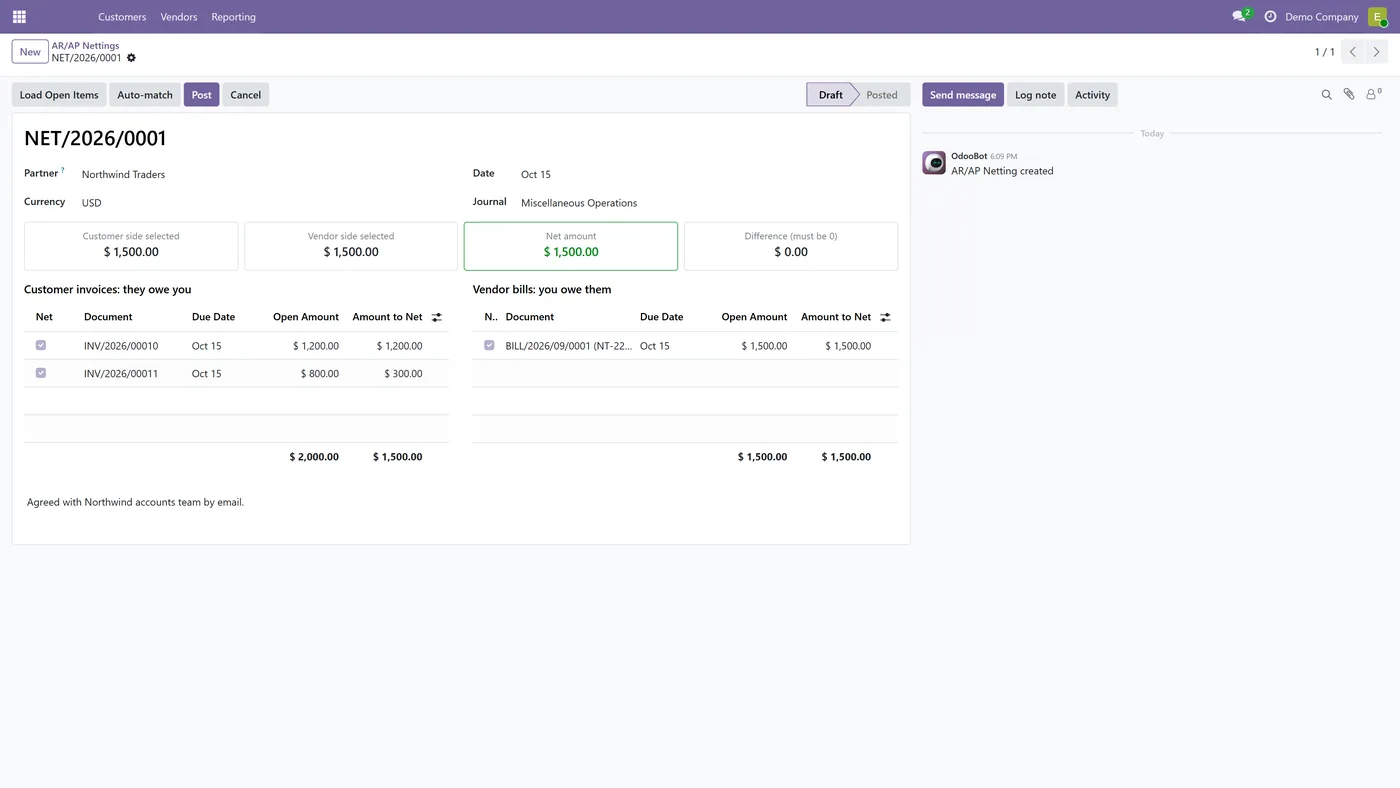
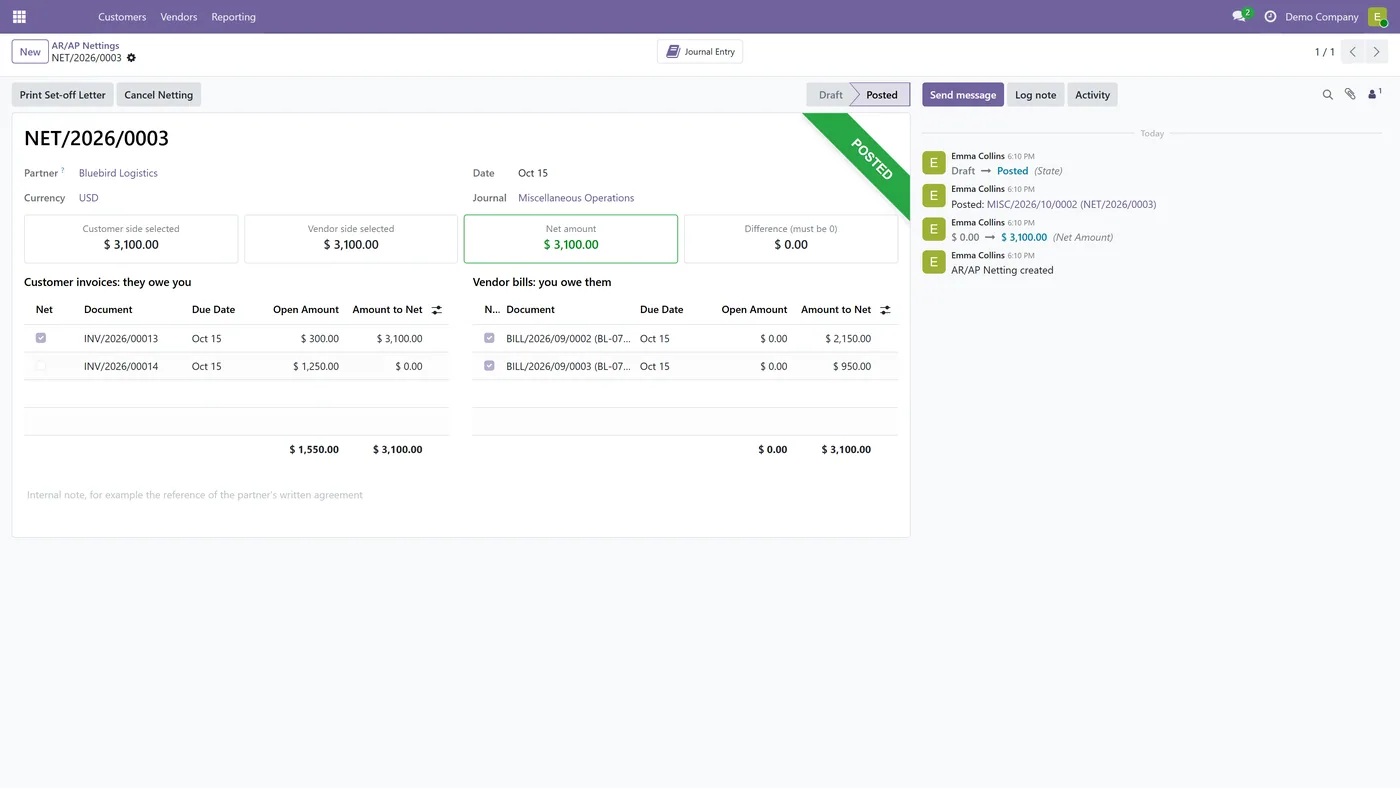
Netting document per partner with their open customer invoices and vendor bills side by side
- Auto-match selects the oldest due items first, up to the smaller of the two totals
- Partial netting by changing the amount on any invoice or bill
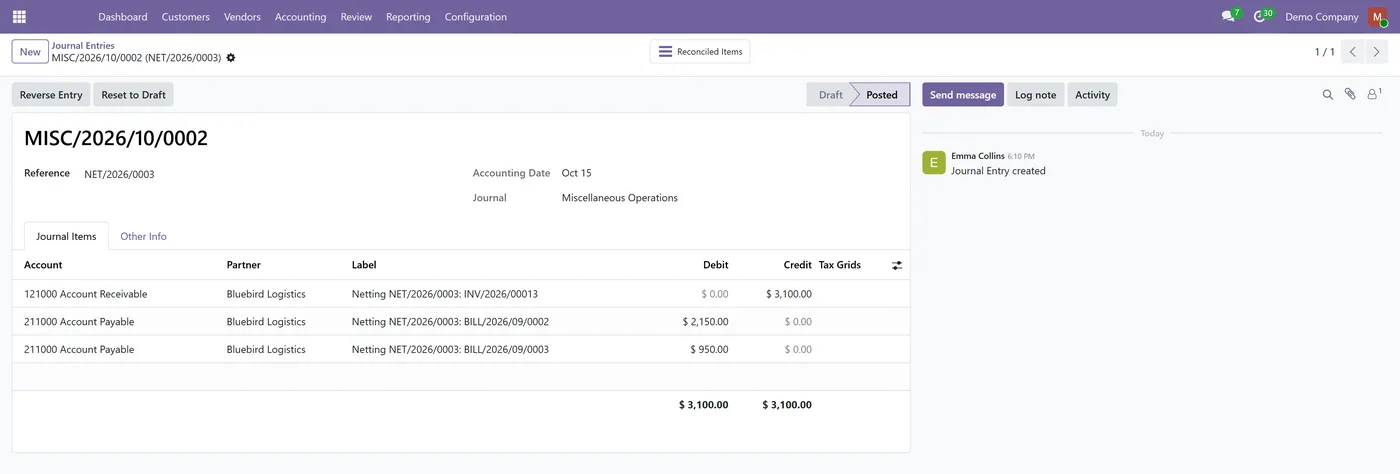
- One journal entry per netting, credit receivable and debit payable for each item
- Every invoice and bill reconciled with Odoo's standard reconciliation, shown as Paid or Partially Paid
02
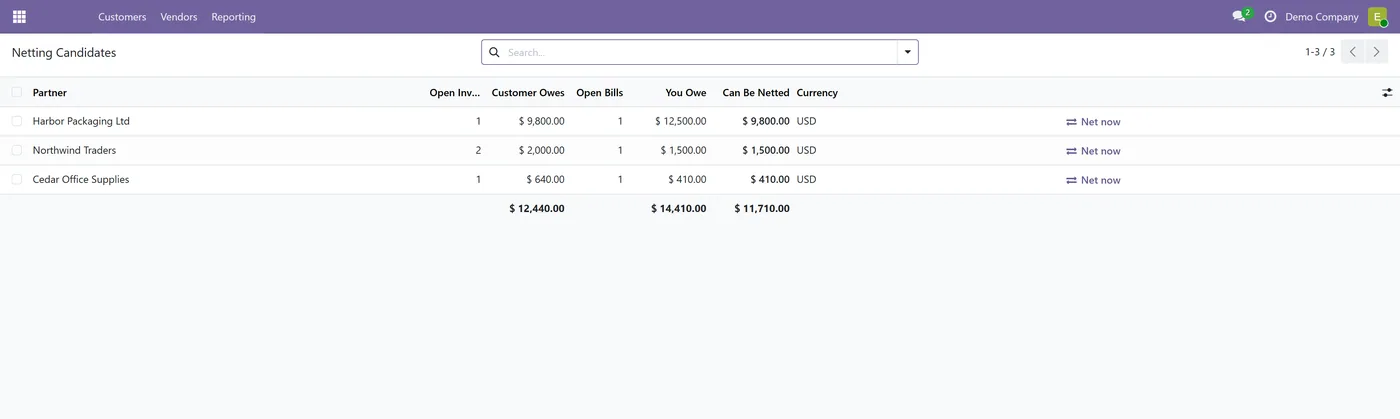
Netting Candidates list of every partner with open items on both sides, with a Net now button
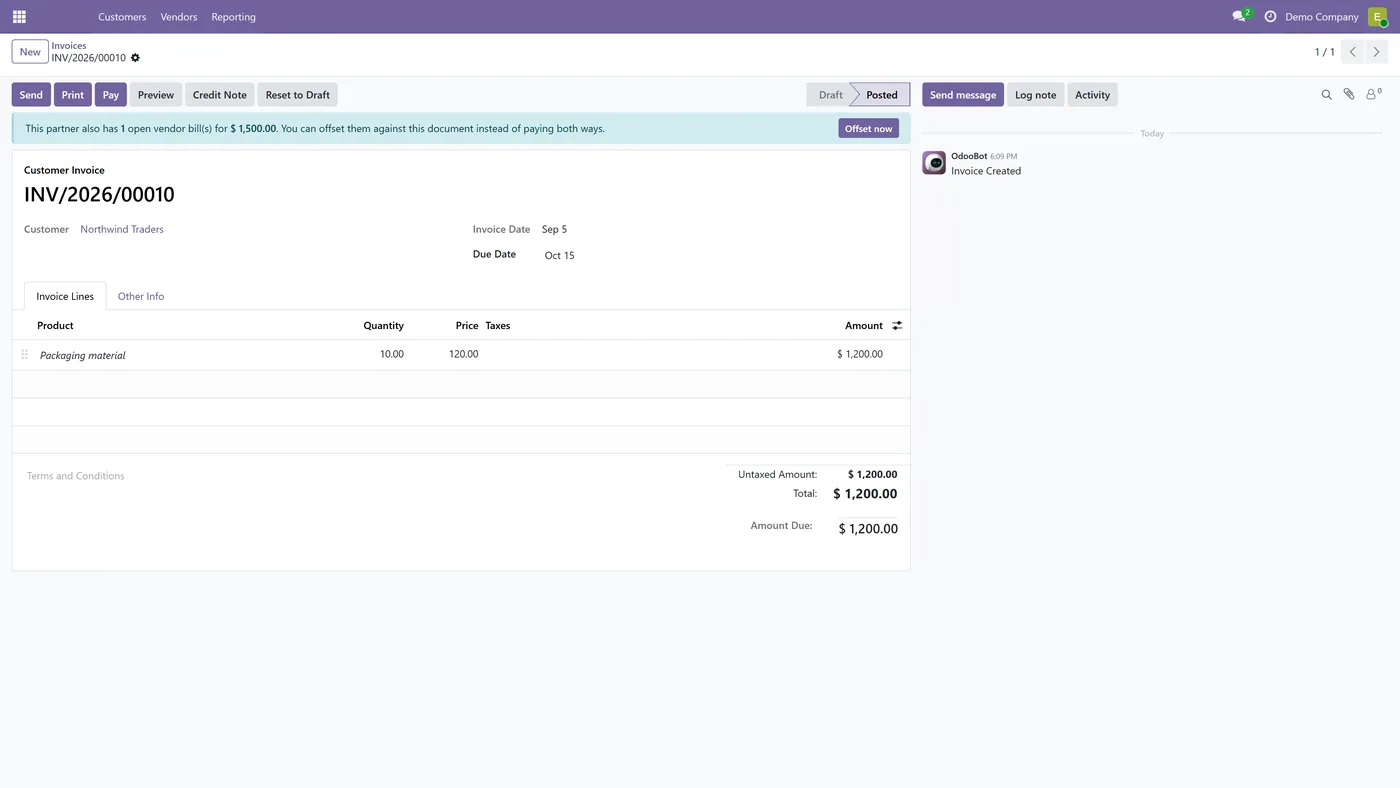
- Banner on invoices and bills when the same partner has open items on the other side
- Nettings button on the partner form
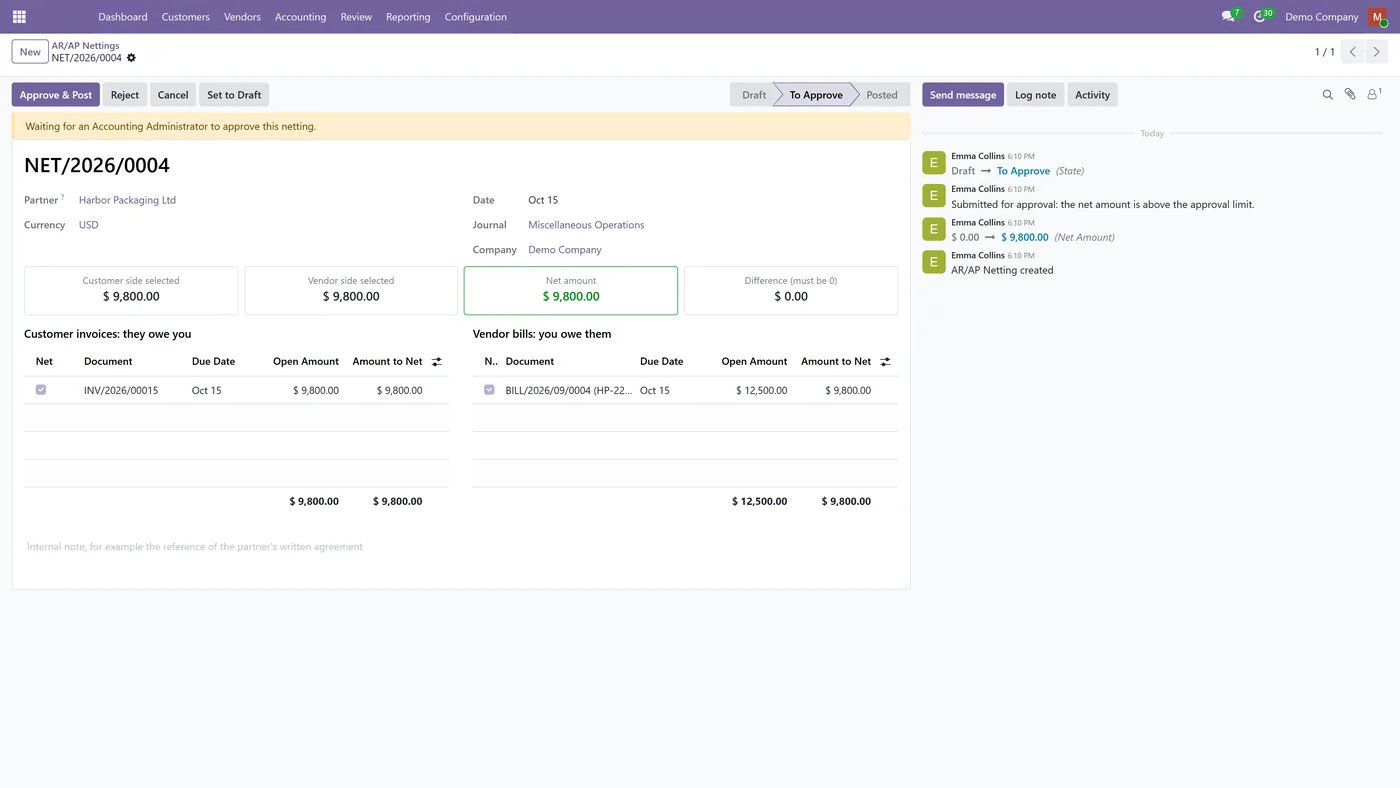
- Approval limit per company, with Approve and Reject for Accounting Administrators
- Cancel a posted netting with a reversal that reopens the invoices and bills
03
Refuses a date inside a locked period instead of silently moving it
- Printable set-off confirmation letter for the partner
- Contacts of the same company are netted together under their commercial partner
- Works in any currency, with all items of one netting in the same currency
- Multi-company record rules, and branches can post through a journal of their parent company
Every screen
The whole module, screen by screen.
The captures the walkthrough above did not use, in the order you meet them in the product.
AR/AP Netting settles a partner who is both your customer and your vendor, without sending money in both directions. Odoo reconciles items only on the same account, so a customer invoice on the receivable account cannot be matched against a vendor bill on the payable account. This module adds the missing step: a netting document that offsets the two and closes both sides properly.
What it does
Create a netting for a partner and their open customer invoices and vendor bills load side by side. Auto-match picks the oldest due items first, up to the smaller of the two totals, or you tick the items yourself and change any amount for a partial offset. The summary shows what is selected on each side, the net amount and the difference, which must be zero before you can post.
Posting creates one miscellaneous journal entry that credits receivable and debits payable for each selected item, then reconciles every invoice and bill with Odoo's standard reconciliation. They show as Paid or Partially Paid exactly as if a payment had been registered. A Netting Candidates list shows every partner you could net today, each invoice and bill shows a banner when the same partner has open items on the other side, and the partner form gets a Nettings button. Nettings at or above your approval limit wait for an Accounting Administrator, a posted netting can be cancelled with a reversal, and a set-off confirmation letter can be printed for the partner.
Who it's for
Finance teams that buy from and sell to the same companies: distributors, logistics providers, manufacturers with toll processing, groups trading between sister companies, and any business that agrees a contra settlement with a partner instead of paying both ways. It suits accountants who want the offset recorded as a proper journal entry with an audit trail, an approval step for large amounts and a letter the partner can sign.
Questions
About AR/AP Netting.
How do I offset a customer invoice against a vendor bill of the same partner in Odoo?
In Invoicing (Accounting on Enterprise), open Customers, AR/AP Nettings and create a netting for the partner. Load the open items, press Auto-match or tick the invoices and bills yourself, check that the difference is zero, and press Post. One journal entry is created and every selected invoice and bill is reconciled, so both show as paid.
Can I net only part of an invoice or bill?
Yes. Change the amount to net on any line, up to its open amount. The invoice or bill becomes Partially Paid and the rest stays open for a later payment or netting.
Which invoices and bills can be netted together?
Posted, open items of the same partner, in the same currency and of the exact same company as the netting. Contacts of one company count as that company. For a branch, create the netting in the branch itself; it can post through a miscellaneous journal of its parent company.
Does the netting calculate withholding tax?
No. A netting settles the open balance of each invoice and bill as it is booked. If withholding tax applies in your country, record it on the invoice, bill or payment first, then net what remains open.
Can large nettings require approval?
Yes. Set an approval limit in Settings. A netting at or above it is sent To Approve when an invoicing user posts it, and only an Accounting Administrator can approve and post it or reject it. Cancelling a posted netting above the limit also needs an Accounting Administrator.
What happens if I cancel a posted netting?
The netting entry is reversed and the invoices and bills it settled are open again, exactly as before. The netting keeps a link to both the entry and its reversal.
Is there a document I can send to the partner?
Yes. A posted netting prints a set-off confirmation letter that lists every invoice and bill settled and the net amount, with a signature line for both companies.
Which Odoo versions does this module support?
Use the version selector at the top of this page to pick your Odoo release. Each branch is published as its own listing for that exact version.
On the Odoo Store
Get AR/AP Netting on the Odoo Store.
Pick your Odoo version and install it in a click, with free updates and real support behind it.
Get it on the Odoo StoreReady to make Odoo work the way your business does?
Book a free call CODEerts
 is a team of certified Odoo partners and full-stack engineers. We implement, customise and support Odoo ERP, then build the software around it.