CODEerts
Accounting app for Odoo
Vendor Bill Payment Approval
Add a group-controlled Payment Approval status on overdue vendor bills, on the bill form and the Bills list, so only authorized users can mark an overdue bill approved for payment. It is an informational status and never posts any accounting entry.
Overview
Vendor Bill Payment Approval.
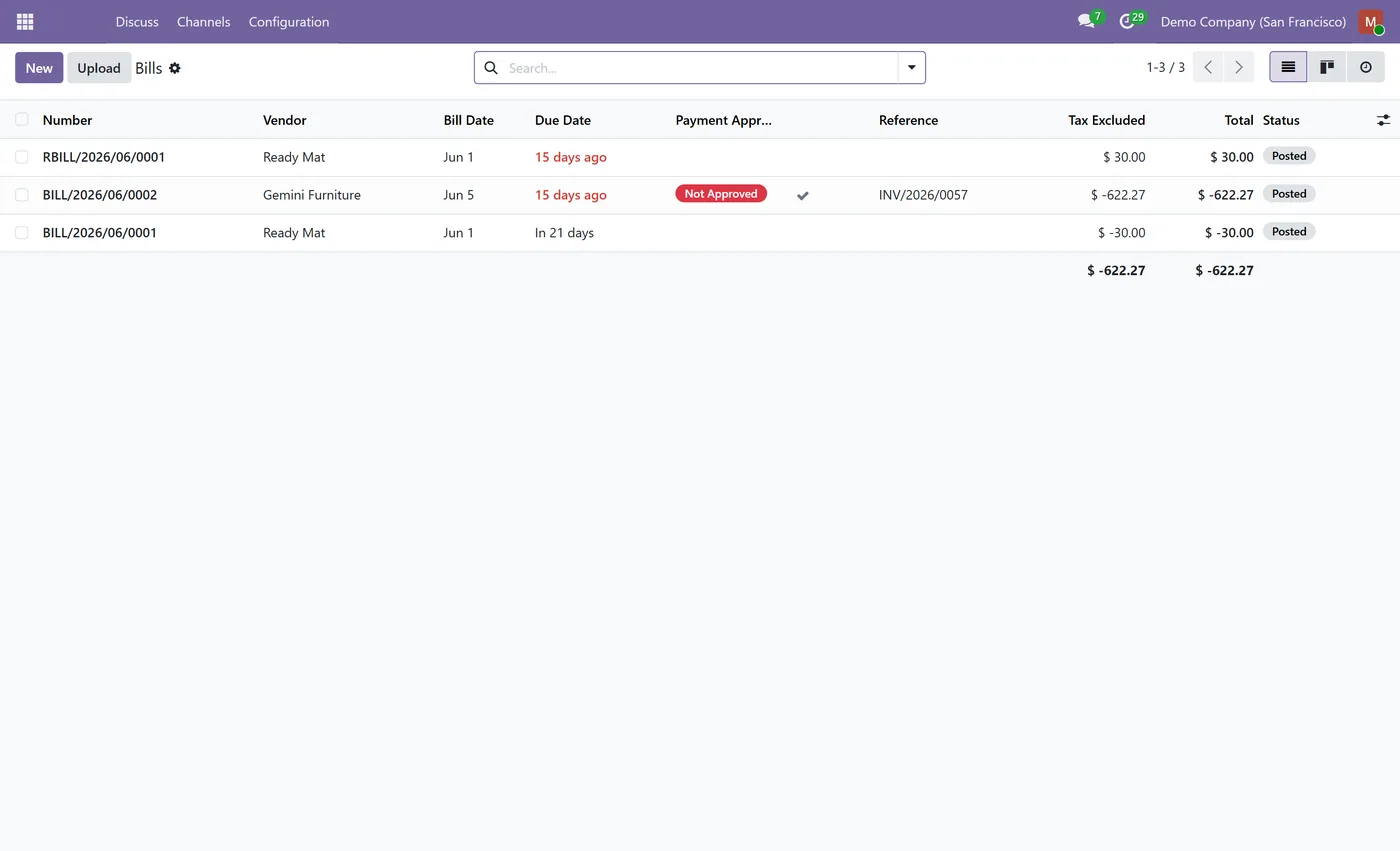
Vendor Bill Payment Approval gives accounts payable a simple, controlled sign-off on overdue vendor bills without touching your accounting. When a posted vendor bill is unpaid and past its due date, it shows a red Not Approved badge together with an Approve Payment button, on the bill form and on every row of the Bills list. Only users in the Vendor Bill Payment Approver group can use that button, and the action is enforced on the server, so a user without the right cannot change the status from the button or through any other path, they only see the read only badge. Once approved, the badge turns green and a Reset Approval button lets an authorized user revert it. The status is deliberately cosmetic, it records a manual approval decision and never creates, posts or reconciles any journal entry or payment, so your books are never changed. It applies only to vendor bills, never to customer invoices, and it appears only while a bill is genuinely overdue and unpaid. If the bill later becomes due again, because a payment was unreconciled or the bill was reset to draft, the approval clears automatically and the Approve button comes back, so the status always reflects the current situation.
New to Odoo Accounting? Read our practical guide to how it works
How it works
Built around what you actually do.
Every screen below is the module running in Odoo, not a mockup.
01
A Payment Approval status appears on overdue, unpaid vendor bills, on the form and the Bills list
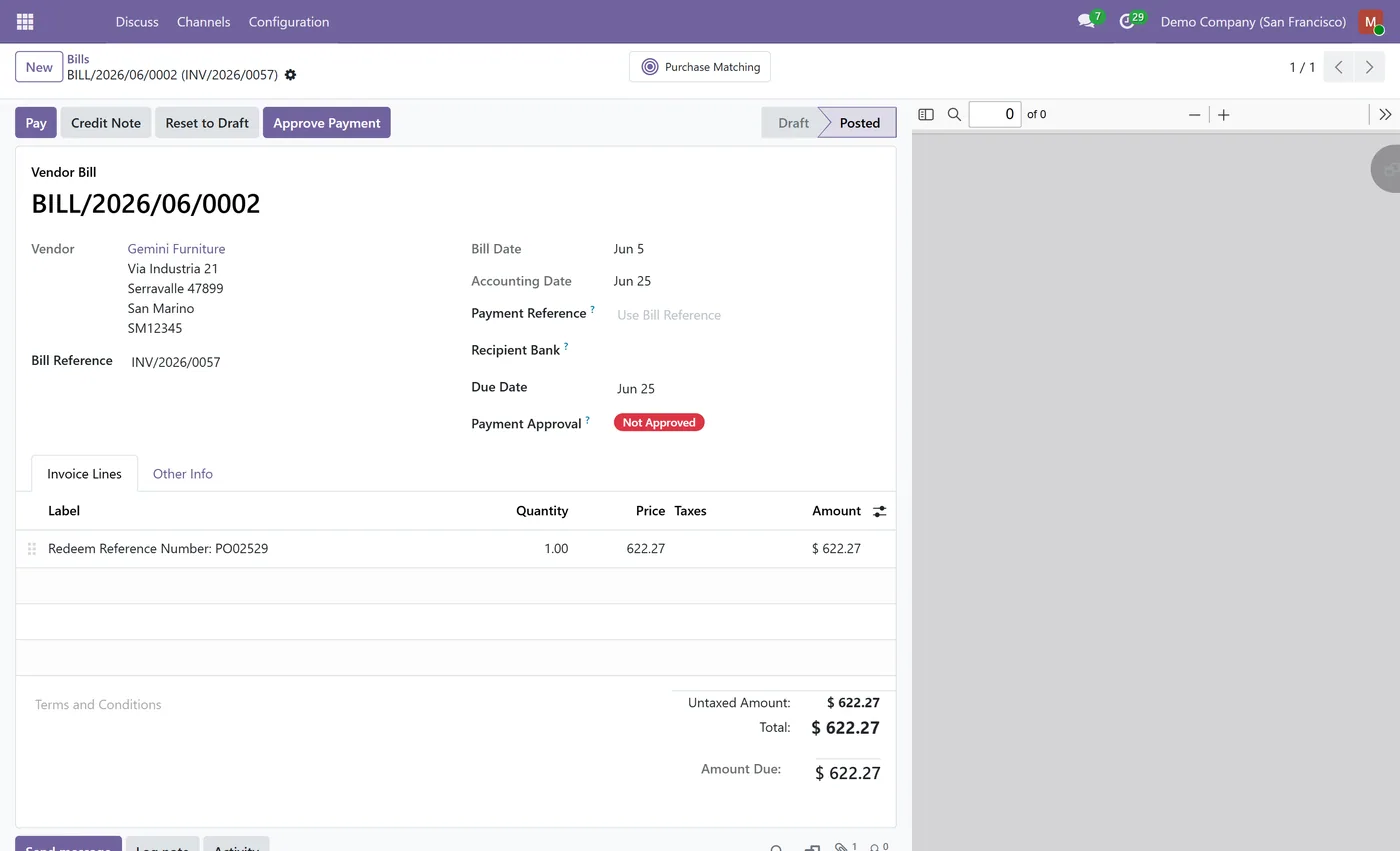
- Not Approved and Approved badges, with a one click Approve Payment button
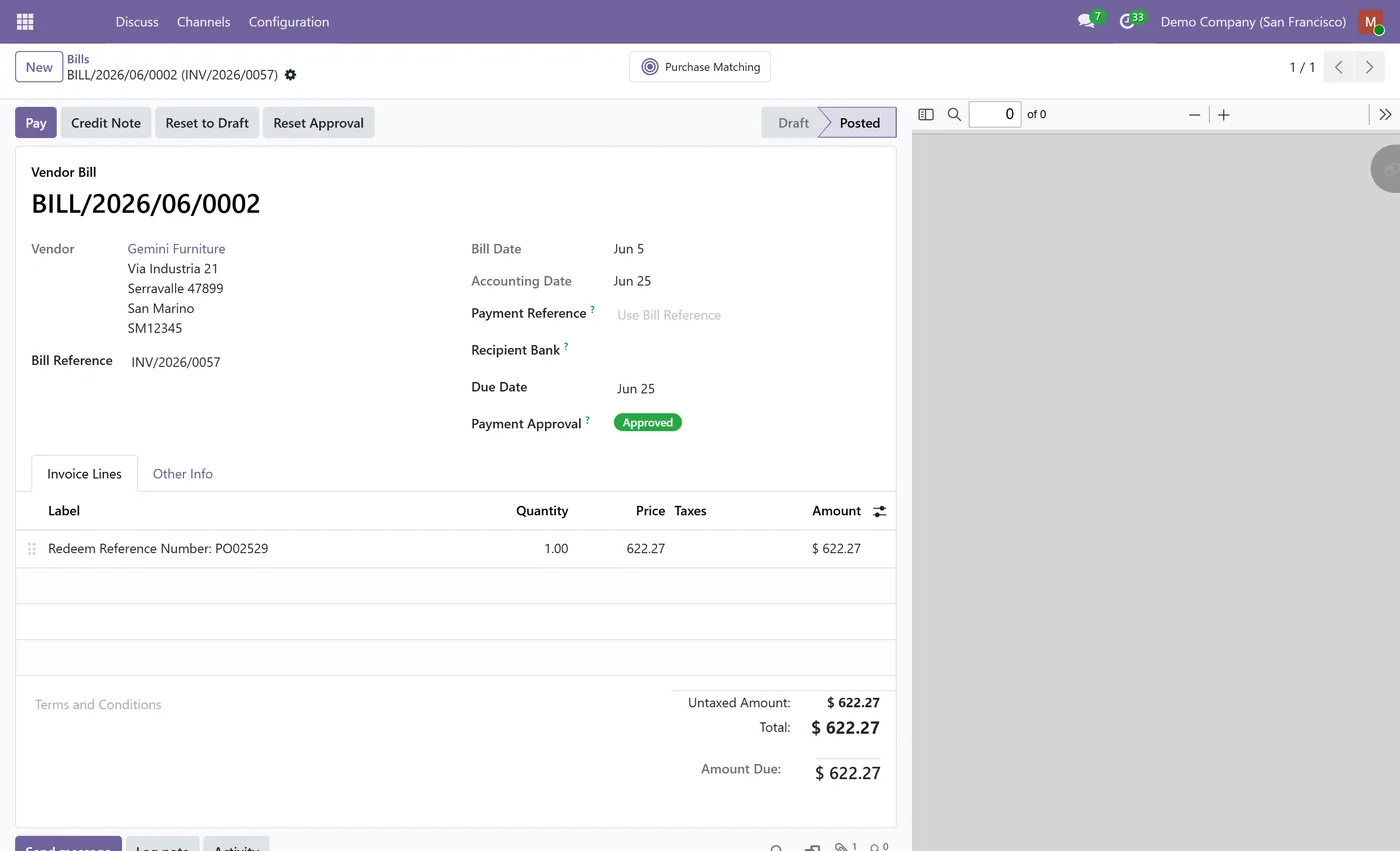
- A Reset Approval button reverts an approved bill back to Not Approved
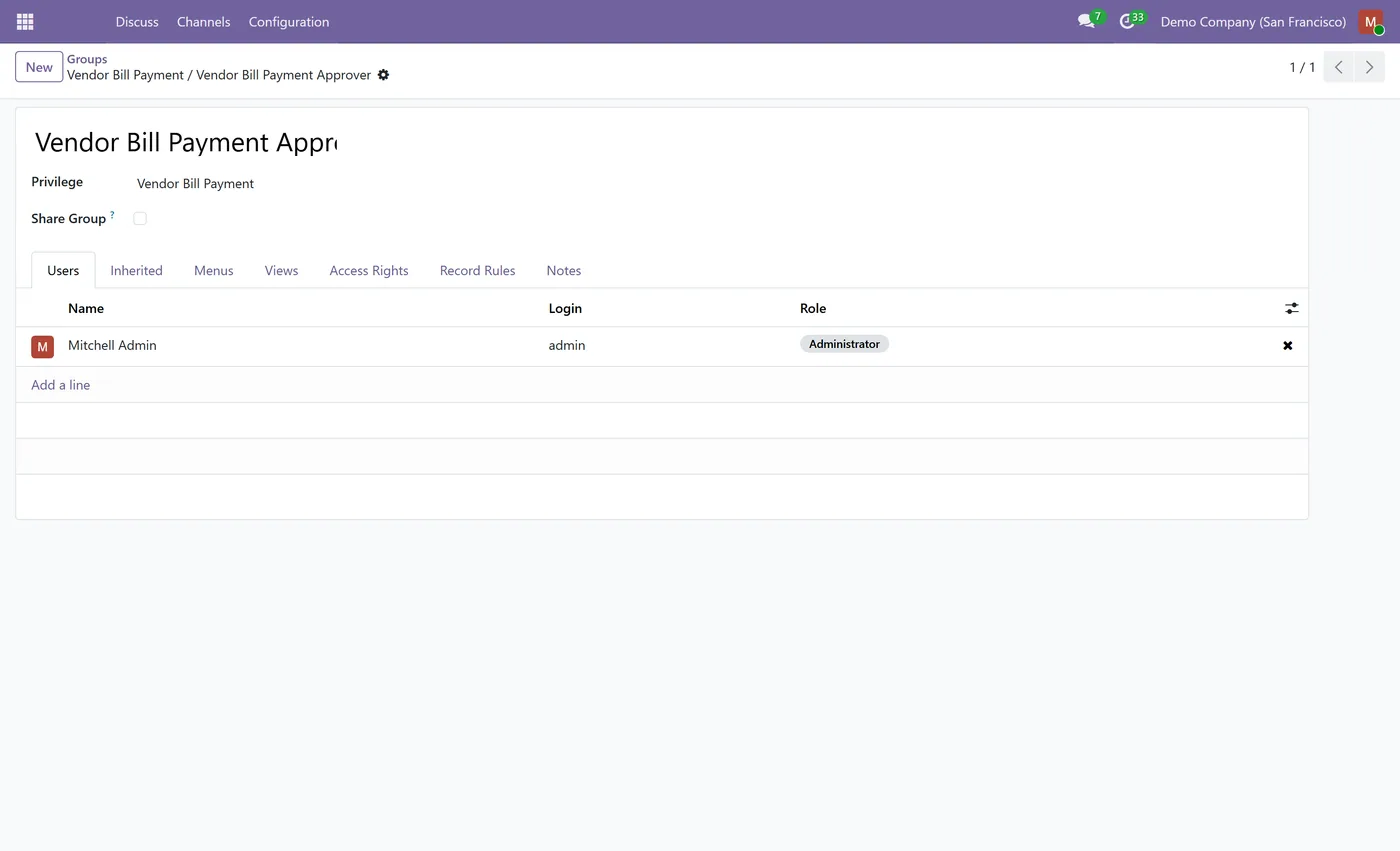
- Only users in the Vendor Bill Payment Approver group can approve or reset
02
The approve and reset actions are enforced on the server, not just hidden in the interface
- Users without the right still see the status as a read only badge, they simply cannot change it
- The status is informational only and never creates, posts or reconciles any accounting entry
- Applies to vendor bills only, never to customer invoices
03
Shows only while a bill is posted, unpaid and past its due date
- The approval clears automatically when a bill becomes due again, on unreconcile or reset to draft
- The admin gets the approver right on install and can assign it to any users
- Community and Enterprise compatible, depends only on the Accounting app
Vendor Bill Payment Approval adds a controlled, visible sign-off step to overdue vendor bills, without ever touching your accounting. It gives accounts payable a clear way to say which past-due supplier bills have been approved for payment, who can approve them, and what has already been signed off, all from the standard bill form and the Bills list.
What it does
When a vendor bill is posted, unpaid and past its due date, the module shows a Payment Approval badge on the bill, just below the Due Date, and as a column on the Bills list. Overdue bills start as a red Not Approved and carry an Approve Payment button. A user in the Vendor Bill Payment Approver group clicks it, the badge turns green Approved, and a Reset Approval button appears so an authorized user can revert the decision if needed. Everyone else sees exactly the same status as a read-only badge, but the Approve and Reset actions are restricted to the group and enforced on the server, so no one outside the group can change it. The status is purely informational: it records the approval decision and never creates, posts or reconciles any payment or journal entry. It is limited to vendor bills, never customer invoices, and it only appears while a bill is genuinely overdue and unpaid. If the bill later becomes due again, because a payment was unreconciled or the bill was reset to draft, the approval clears itself and the Approve button returns, so the status is always current.
Payable, not receivable
This module works on money going out: posted vendor bills that are unpaid and past their due date. The badge appears once a bill is actually overdue, because that is the moment a payment decision has to be made, and the question it answers is "is anyone authorised to pay this".
Its counterpart works on money coming in. Customer Invoice Send Approval puts the same group-controlled sign-off on customer invoices before sales sends them out. Same mechanism, opposite direction, different approver. They install independently and many teams run both.
Neither posts an accounting entry. The status is informational, which is what makes it safe to add to a live ledger.
Who it's for
Accounts payable teams who need someone senior to sign off before an overdue supplier bill gets paid, without introducing a workflow that touches the ledger. It suits companies where several people can register payments and the control you want is a visible marker rather than a locked process, and finance managers who want that authority restricted to a named group.
Questions
About Vendor Bill Payment Approval.
How do I approve an overdue vendor bill for payment in Odoo?
Open the overdue vendor bill, or find it in the Bills list, and click the Approve Payment button. The Payment Approval badge turns from red Not Approved to green Approved. The button is only available to users in the Vendor Bill Payment Approver group.
Does approving a bill post a payment or a journal entry?
No. The approval is an informational status only. It records that an authorized user approved the bill for payment and never creates, posts or reconciles any payment or journal entry, so your accounting is never changed by this module.
Can a user without the right change the approval status?
No. Users who are not in the Vendor Bill Payment Approver group do not see the Approve or Reset buttons, and the actions are also enforced on the server, so the status cannot be changed by anyone outside the group. They still see the current status as a read only badge.
Where does the Payment Approval status show up?
On the vendor bill form, just below the Due Date, and as a column with a badge on the Bills list view. The Approve and Reset buttons appear in the bill header and as compact buttons on each overdue row in the list.
Does it work on customer invoices too?
No. The status and buttons apply to vendor bills only. Customer invoices, credit notes and journal entries never show the Payment Approval status.
What happens if the bill becomes due again after it was approved?
The approval clears automatically. If a payment is unreconciled or the bill is reset to draft and it is again a posted, unpaid, overdue bill, the status returns to Not Approved and the Approve button comes back, so the status always reflects the current state.
Which Odoo versions does this module support?
Use the version selector at the top of this page to pick your Odoo release. Each branch is published as its own listing for that exact version.
On the Odoo Store
Get Vendor Bill Payment Approval on the Odoo Store.
Pick your Odoo version and install it in a click, with free updates and real support behind it.
Get it on the Odoo StoreReady to make Odoo work the way your business does?
Book a free call CODEerts
CODEerts is a team of certified Odoo partners and full-stack engineers. We implement, customise and support Odoo ERP, then build the software around it.