CODEerts
Point of Sale app for Odoo
POS Customer Display Slideshow
Turn the idle Welcome screen of the Point of Sale customer display into a rotating slideshow of your own promotional images, with optional captions, per-POS targeting, date scheduling and a configurable interval.

Overview
POS Customer Display Slideshow.
POS Customer Display Slideshow replaces the static Welcome screen on the Point of Sale customer-facing display with a rotating slideshow of your own images. Upload promo banners, menu boards or branding, add an optional caption title and text, and set how many seconds each slide is shown. Slides can be set per Point of Sale, with a global set used as a fallback for any POS that has none of its own. Each slide can carry an optional start and end date so seasonal promotions appear and expire on their own. A per-POS option makes the slideshow fill the whole screen while no order is in progress, then hands back to the normal order view the moment a sale starts. The Powered by Odoo badge on the customer display is removed for a clean, branded screen.
New to Odoo Point of Sale? Read our practical guide to how it works
How it works
Built around what you actually do.
Every screen below is the module running in Odoo, not a mockup.
01
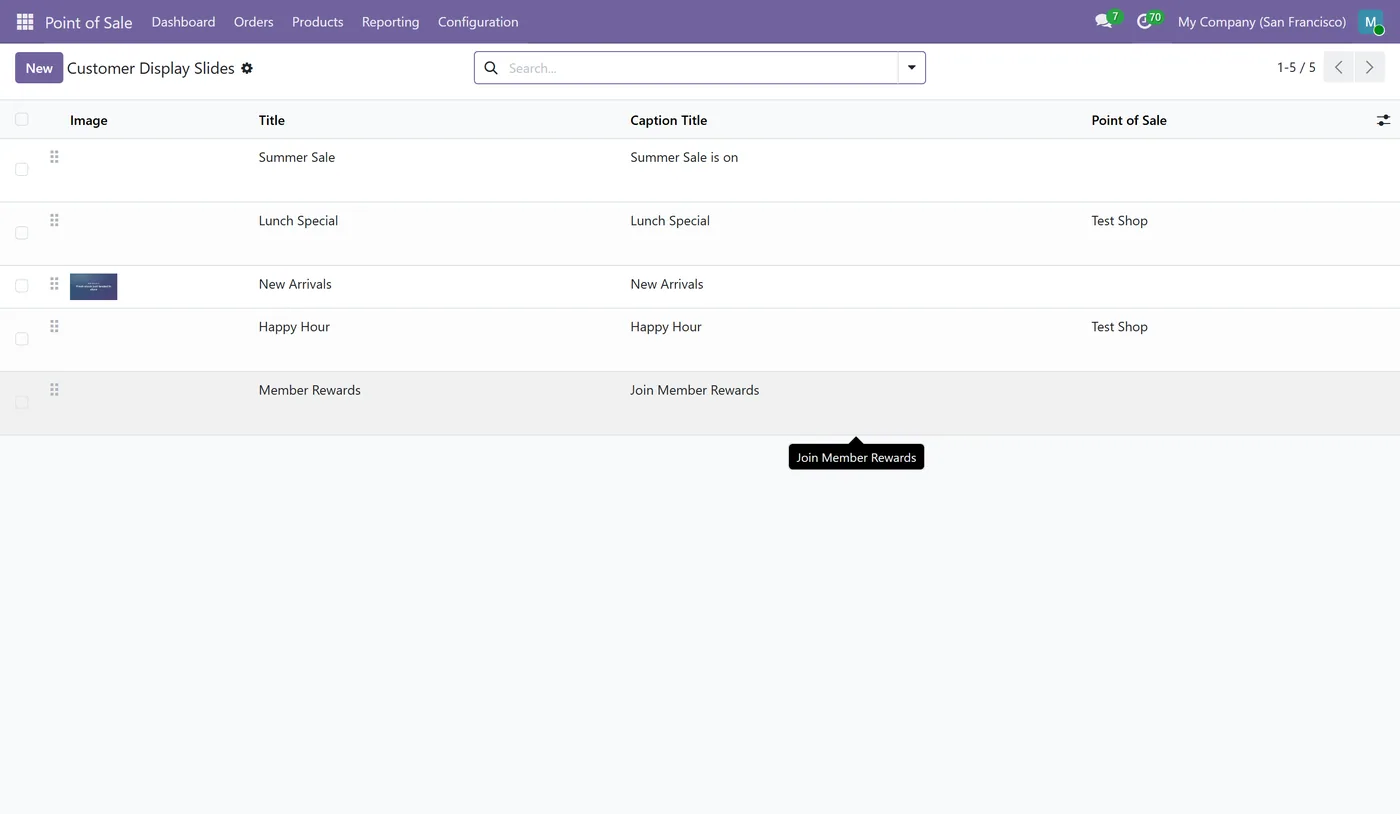
Rotating image slideshow on the POS customer display idle screen
- Upload your own promotional images, menu boards or branding
- Optional caption title and text overlaid on each slide

02
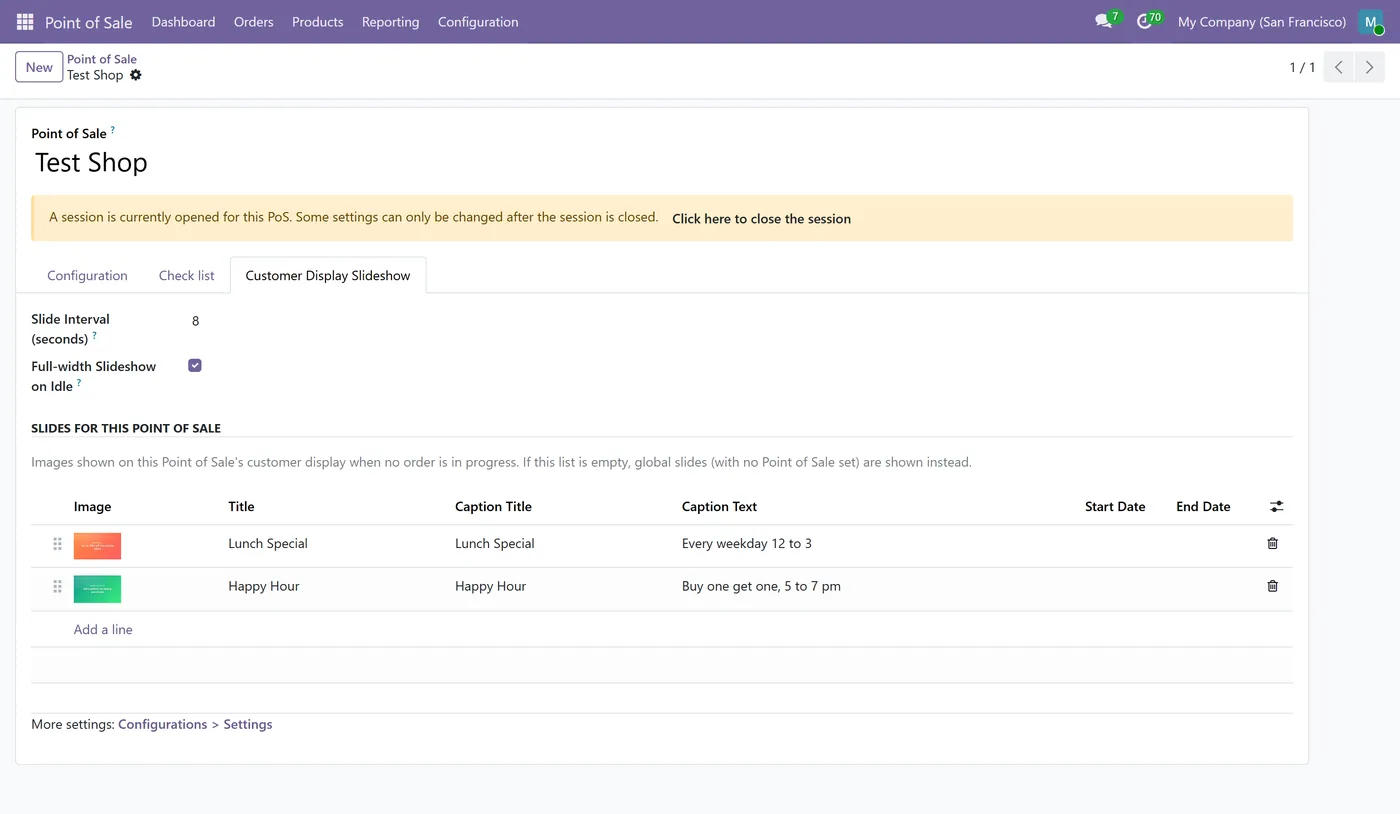
Set slides per Point of Sale, with a global set as automatic fallback
- Configurable transition interval (seconds per slide) per POS
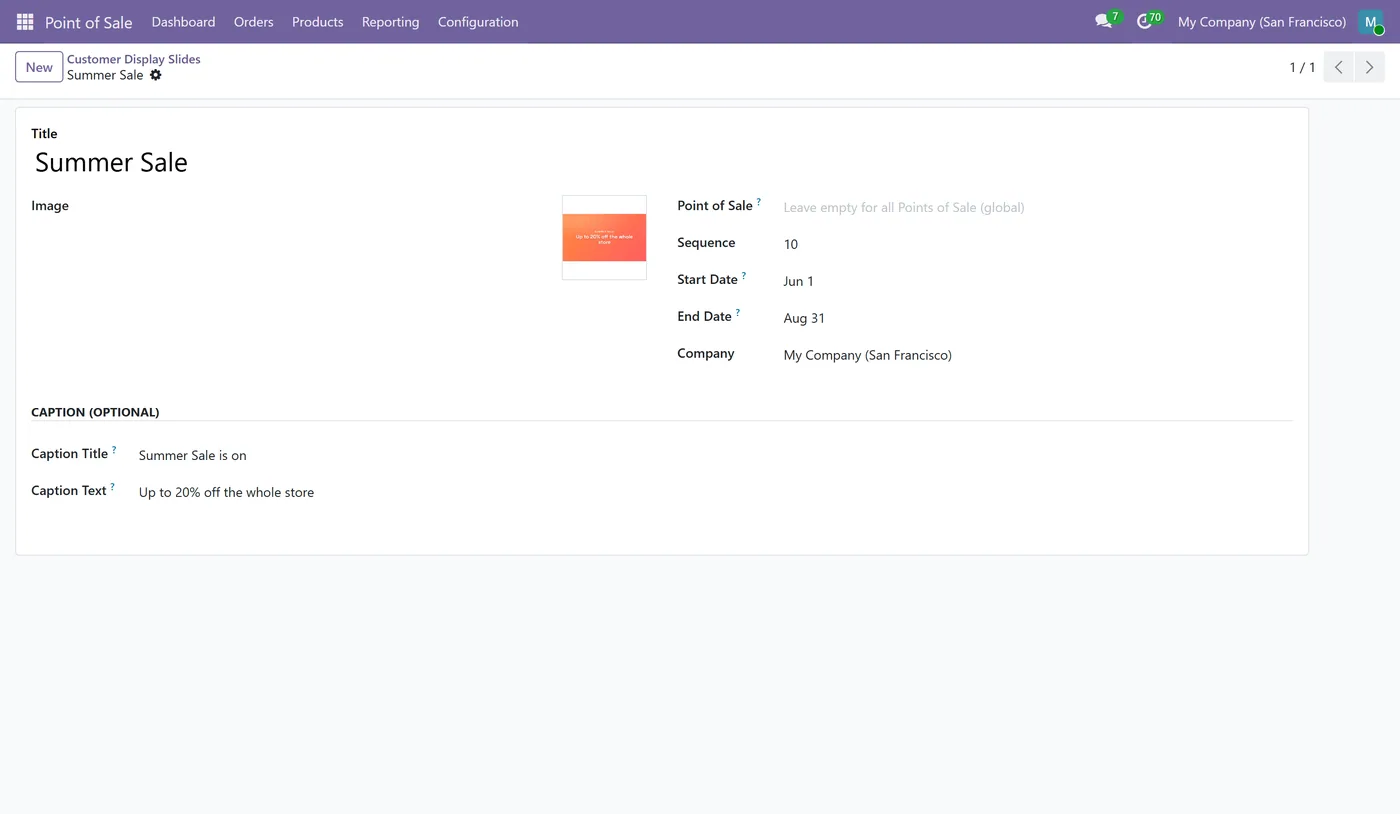
- Optional start and end date per slide so promotions auto-expire

03
Full-width on idle option that hands back to the order view when a sale starts
- Powered by Odoo badge removed from the customer display
- Falls back to the standard Welcome screen when no slides are configured
Every screen
The whole module, screen by screen.
The captures the walkthrough above did not use, in the order you meet them in the product.
POS Customer Display Slideshow turns the second screen your customers look at into a place to show your own message. Instead of a static Welcome line, the idle customer display runs a rotating slideshow of the images you upload, then steps aside the moment an order begins so the shopper sees their items and total as usual.
What it does
Upload any number of images in Point of Sale, Configuration, Customer Display Slides. While no order is in progress, the customer-facing display cycles through them as a slideshow, each shown for the number of seconds you choose. Every slide can carry an optional caption title and text, so a picture can also deliver a headline or a discount message. Slides can be assigned to a specific Point of Sale, and any POS without its own slides falls back to the global set, so one default loop can cover every register while individual shops override it. An optional start and end date on each slide makes seasonal promotions appear and expire on their own. A per-POS option lets the slideshow fill the whole screen on the idle state, hiding the logo sidebar, and the normal order view returns instantly when a sale starts. The Powered by Odoo badge on the display is removed for a clean, branded screen.
Who it's for
Any retailer, cafe, restaurant or shop that uses the Odoo Point of Sale customer display and wants that screen working for them, promoting offers, new products, loyalty sign-ups or simply their brand, while the customer waits. It is ideal for businesses running seasonal campaigns across one or many registers that want to schedule promos ahead of time and keep the screen on brand.
Questions
About POS Customer Display Slideshow.
How do I show my own images on the Odoo POS customer display?
Install the module, open Point of Sale, Configuration, Customer Display Slides, and upload your images. They appear as a rotating slideshow on the customer-facing display whenever no order is in progress, replacing the default Welcome screen.
Can I show different slideshows on different Points of Sale?
Yes. Each Point of Sale can have its own set of slides on its configuration form. Any POS that has no slides of its own automatically shows the global set, the slides that are not tied to a specific Point of Sale.
How do I schedule a promo to show only on certain dates on the POS display?
Each slide has an optional start date and end date. The slide is only shown while the current date is inside that window, so seasonal or weekend promotions appear and expire automatically without anyone having to switch them on or off.
Can I add text or a caption over the slideshow images?
Yes. Every slide has an optional caption title and caption text that are shown over the image, so you can add a headline like a discount message under or beside the picture.
Does the slideshow take over the whole customer display screen?
There is a per-POS option for that. When it is on, the logo sidebar is hidden while the display is idle so the slideshow fills the whole screen, and the normal order layout returns as soon as a sale starts.
Does this remove the Powered by Odoo branding on the customer display?
Yes. The Powered by Odoo badge on the customer-facing display is removed so the screen shows only your own images and branding.
Which Odoo versions does this module support?
Use the version selector at the top of this page to pick your Odoo release. Each branch is published as its own listing for that exact version.
On the Odoo Store
Get POS Customer Display Slideshow on the Odoo Store.
Pick your Odoo version and install it in a click, with free updates and real support behind it.
Get it on the Odoo StoreReady to make Odoo work the way your business does?
Book a free call CODEerts
CODEerts is a team of certified Odoo partners and full-stack engineers. We implement, customise and support Odoo ERP, then build the software around it.