
Odoo 20 Enterprise comes with its own MCP server, and of everything in this release, it is the feature we expect to change most how teams use AI with their ERP. The short version: point an AI assistant at https://your-database/mcp, give it an API key created for MCP, and it can start asking questions of your Odoo data. Out of the box it can only read. Anything beyond that is a decision your administrator makes, and it is worth making slowly.
Applies to: Odoo 20 Enterprise. The MCP server installs automatically with the AI app. There is no equivalent in Odoo 19 or in Community.
What is MCP, in plain terms?
MCP (Model Context Protocol) is an open standard that lets an AI assistant find out what a system can do, and then ask it to do those things. Think of it as a menu the assistant can read. Odoo 20 publishes that menu at a single address, /mcp, and every item on it is called a tool.
One thing surprises people: the AI does not run inside Odoo here. Your assistant does the thinking, and Odoo simply answers its requests. That is a different arrangement from the AI agents built into Odoo 20, which run on Odoo's own paid AI service.
What can it do on day one?
Five tools, all read-only:
| Tool | What the assistant gets |
|---|---|
| Get Models | The kinds of records the user can see |
| Get Fields | What each kind of record contains |
| Search | Matching records, with the fields it asks for |
| Read group | Grouped totals, much like a pivot table |
| Retrieve initial context | Who the user is, their timezone and their companies |
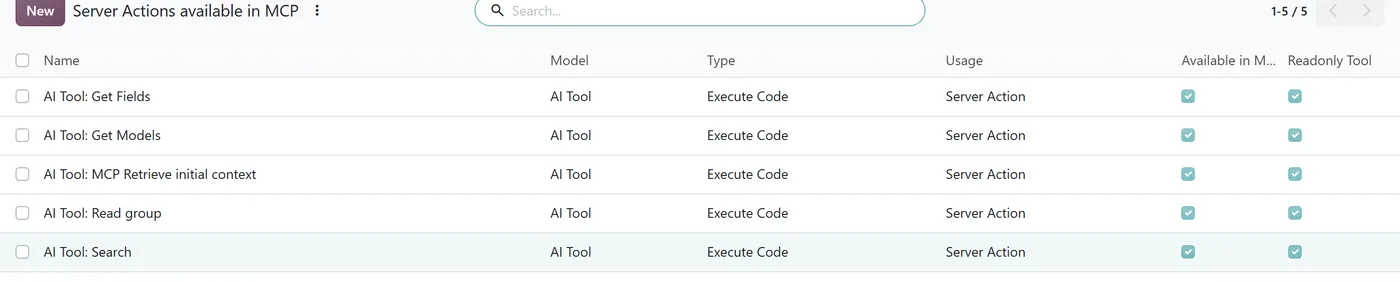
That is already useful. An assistant can answer "which customers are more than 30 days overdue?" or "how did this product sell month by month?" without anyone building a report. What it cannot do is create, confirm or post anything. For that, someone has to switch it on.
Two things catch people out early:
- Dates come back in UTC. A good client converts them for you, but check before you trust anything that says "yesterday".
- It always works in the user's default company. An MCP conversation has no company switcher. In a multi-company database you can get a perfectly correct answer about the wrong company. On any multi-company setup, this is the first thing we would check.
How do you connect an assistant?
It takes three steps:
- In Odoo, click your avatar, open the security settings and generate a new API key. Set its scope to MCP.
- In your assistant or MCP client, set the server URL to your Odoo address plus
/mcp, for examplehttps://example.odoo.com/mcp. - Save the key as the client's token, in a password or credential field. Odoo itself warns that anyone holding the token can act as you, so never paste it into a plain text box.
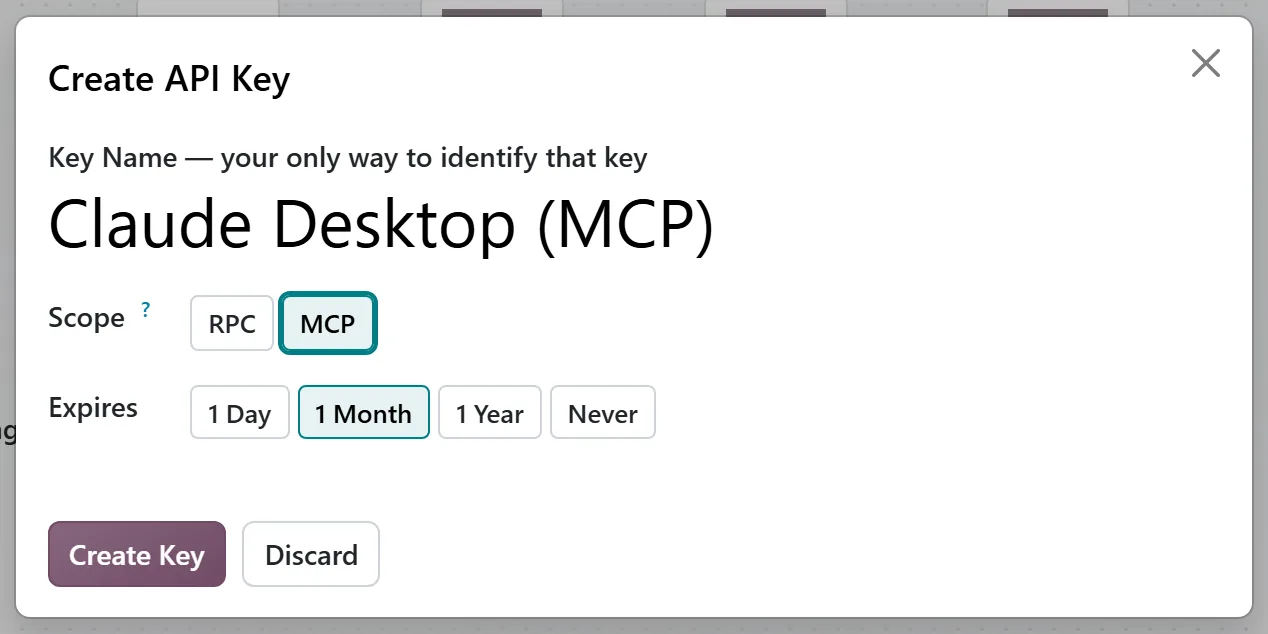
Keys are tied to their purpose. A key made for MCP will not work for your JSON-2 integrations, and an integration key will not open an MCP session. A key also stops working when its expiry date passes or when its user is archived, which is exactly what you want when someone leaves the company.
Who is the assistant acting as?
Whoever owns the key. The assistant only sees the tools that user may run, every tool runs with that user's normal rights, and record rules apply to every search and every change. Odoo's technical configuration records are off-limits to AI tools altogether.
That makes the most important decision a fairly boring one: give every MCP connection its own Odoo user, with only the access that use case needs, and create the key on that user. If you take one thing from this article, take this: never generate an MCP key on an administrator account. It turns every tool the assistant can reach into an administrator tool. There is a bonus, too. Every change the assistant makes shows up in the chatter under that user's name, which gives you a simple audit trail for free.
Adding write tools: the part to slow down on
An administrator can offer the assistant more tools by ticking Available in MCP on a server action. Most everyday action types qualify: Python code, creating or duplicating a record, scheduling an activity, adding or removing followers, posting a message, calling a webhook, and updating a field to a fixed value. A second box, Readonly Tool, tells the assistant whether the tool changes data.
Here is the detail we think most teams will miss. When Odoo's own AI chat wants to create or change a record, it shows you a preview and waits for your approval. Through MCP there is no such pause: Odoo runs the tool straight away, as if you had already said yes. Whatever confirmation happens is up to your assistant. So our rules of thumb are:
- Only tick Readonly Tool when the action truly changes nothing. A wrong tick tells the assistant it is safe to go ahead without asking.
- Offer narrow tools, such as "set the delivery date on this order", rather than one broad "update any record" tool.
- Try every write tool as the dedicated user, on a copy of the database, before it goes anywhere near production.
A short pre-launch checklist
| Check | Why it matters |
|---|---|
| The key sits on a dedicated user with minimal access | Tools inherit that user's rights |
| That user's default company is the right one | MCP answers are scoped to it |
| Every tool that writes is left unticked as read-only | It drives whether the assistant asks first |
| A request the user is not allowed to make fails cleanly | Proves record rules are doing the work |
| The key has an expiry date and a named owner | Otherwise it lives until someone remembers to revoke it |
One gap to know about: Odoo records each MCP call in its server log, with the tool, timing, result and caller's IP address, but not in the database. On Odoo Online you cannot read that log. If you need a history you can search, lean on the dedicated user's chatter, or have sensitive tools post a message on the record they change.
FAQ
Is the Odoo MCP server available in Community?
No. It is part of Odoo 20 Enterprise and installs with the AI app. Community users who want MCP need a third-party server built on Odoo's external API.
Does using MCP consume Odoo AI credits?
Not for the MCP request itself. The model runs in your own assistant, and Odoo only carries out the tool it asks for. Odoo's built-in AI features are a separate matter and do run on Odoo's paid AI service.
Can an MCP client delete or post records?
Only if an administrator gives it a tool that does so, and even then only within the key owner's access rights. The five default tools are read-only.
Can I use one API key for MCP and for my integrations?
No. In Odoo 20 every key has a scope and only works where that scope is expected. Create an MCP key for the assistant and a separate key for integrations, ideally on different users.
Next step
Connecting AI to your ERP is an integration project with a security design, not a settings change. If you would like the users, tools and tests set up with you, talk to us about Odoo integration. For the API side, our guide to the Odoo API and integration architecture are good next reads, and Odoo 20: what is verified and what is still speculation covers the rest of the release.