
Odoo 20 can send your sales invoices straight to FBR and print the FBR reference and QR code on the invoice. The setup takes an afternoon. The part that takes longer is getting your products, customers and taxes clean enough that FBR accepts every invoice, and understanding one tax rule that surprises almost every retailer we talk to: on Third Schedule goods, a discount does not reduce the sales tax.
Applies to: Odoo 20 with Invoicing or Accounting, a company in Pakistan, and the "Pakistan - E-invoicing" module. This is new in Odoo 20; Odoo 19 has the Pakistan chart and taxes but no FBR connection.
Who needs this, and why now?
FBR's digital invoicing rules (SRO 709(I)/2025) make electronic invoicing mandatory for corporate and non-corporate sales tax registered persons, with your invoicing system connected to FBR through a licensed integrator or PRAL. The integration dates have been moved more than once, so confirm your own deadline with your tax adviser rather than trusting a date in a blog post, including this one.
What Odoo 20 adds is the connection itself. Until now, Odoo users in Pakistan needed a custom module or a middleware service to reach FBR. Odoo now ships one, maintained by Odoo.
One thing to settle early: the module is part of Odoo Community, but invoices do not go from your database to FBR directly. They go through Odoo's own online service, and that service checks your subscription. Its list of possible errors includes "You do not have an Odoo Enterprise subscription" and "Your database is not used for a production environment". If you were planning an FBR rollout on Community, test that on your own database before you promise anyone a go-live date.
How do you connect Odoo 20 to FBR?
Everything sits in one block: Invoicing > Configuration > Settings > Pakistan Electronic Invoicing (FBR). It only appears when the company's country is Pakistan.
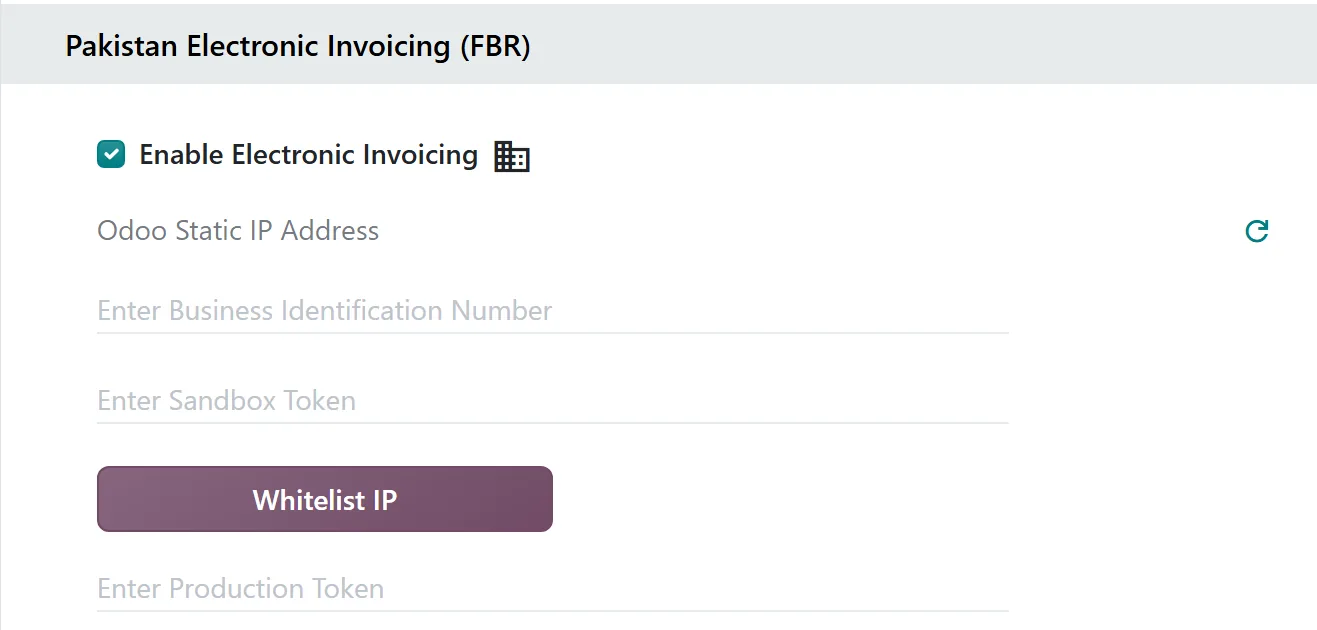
- Enable Electronic Invoicing for the company.
- Fetch the Odoo Static IP Address with the small refresh icon. This is the address of Odoo's service, and it is the address FBR needs to whitelist, not your office IP.
- Enter a registered Business Identification Number and your sandbox token, then press Whitelist IP. Odoo first asks FBR whether that number belongs to a registered business, then runs FBR's sandbox test scenarios, 22 of them in the current version. If at least one passes, the company is marked as whitelisted and the sandbox fields disappear. If some fail, Odoo lists their scenario numbers; you only need to chase the ones that match how your business actually sells.
- Paste the production token you generated on FBR's e-invoicing portal.
Two details that matter on multi-company databases. The sandbox token and the test NTN are stored once for the whole database, while the production token is stored per company. And a token belongs to the company that generated it, so switch to the right company before you paste it.
What does Odoo check before an invoice goes to FBR?
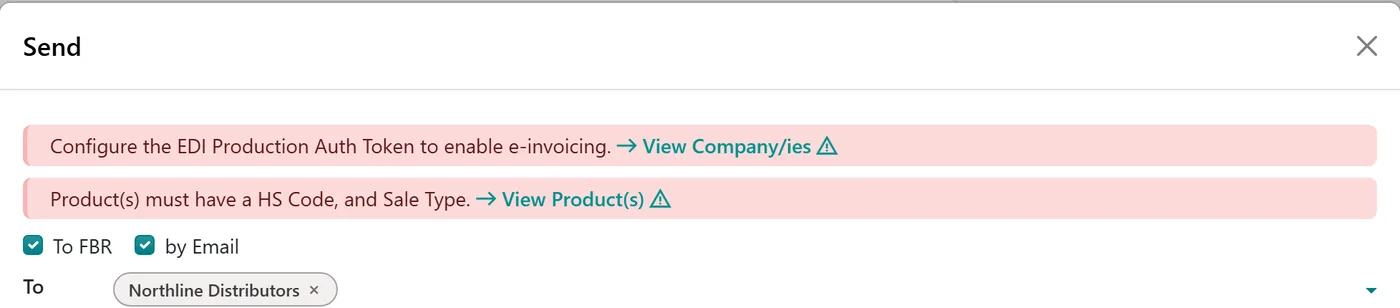
More than most people expect, which is good news. When you press Send on a posted invoice, a To FBR option appears, and above it Odoo lists anything that would make FBR reject the invoice. Nothing is sent until those are cleared.
| Record | What must be filled in |
|---|---|
| Your company | NTN, and a full address including the province |
| The customer | Full address including the province, and their FBR registration status checked (there is a button on the customer that asks FBR) |
| Each product | An 8-digit HS code (written like 0101.2100) and a Sale Type |
| Each unit of measure | An FBR unit code. Units, kilograms and litres come mapped; your own custom units do not |
| A debit note | A reason for the correction |
Our rule of thumb: run a data clean-up on your top 200 products and top 100 customers before you switch the connection on, not after. The province field is the one we see missing most often, because nobody needed it before. Odoo sends the province name to FBR, so a customer with a city but no province stops the invoice.
How does sending actually work?
Odoo sends each invoice twice in a row: first to FBR's validation step, then, only if that passes, to posting. The invoice then shows one of three states:
- Valid: FBR accepted it. Odoo stores the FBR Reference Number and prints it with a QR code on the invoice PDF.
- Invalid: FBR refused it. Its messages are posted in the invoice chatter, line by line, so you can see exactly which line failed. Fix the data and send again.
- Valid (Test): sent to the sandbox while the database is in test mode.
Only customer invoices and debit notes are sent. A debit note that corrects an invoice FBR already accepted carries the original FBR reference and the reason you entered. Credit notes are not sent to FBR by this module, so agree with your tax adviser how returns and refunds should be handled before go-live. That is a process question, not a setting.
What is the Third Schedule catch?
Goods on the Third Schedule of the Sales Tax Act are taxed on their printed retail price, not on what you actually charged. Odoo 20 builds this in with a ready-made tax called GST 18% 3rd. It does not look at the invoice price at all. It takes the product's Sales Price, treats it as the tax-inclusive retail price, and works out the tax from that.
So a discount changes your revenue and leaves the tax exactly where it was. We tested it with 10 cartons of mineral water at a printed price of Rs 1,180:
| No discount | 10% discount | |
|---|---|---|
| Customer pays | Rs 11,800 | Rs 10,620 |
| Sales tax | Rs 1,800 | Rs 1,800 |
| Your net amount | Rs 10,000 | Rs 8,820 |
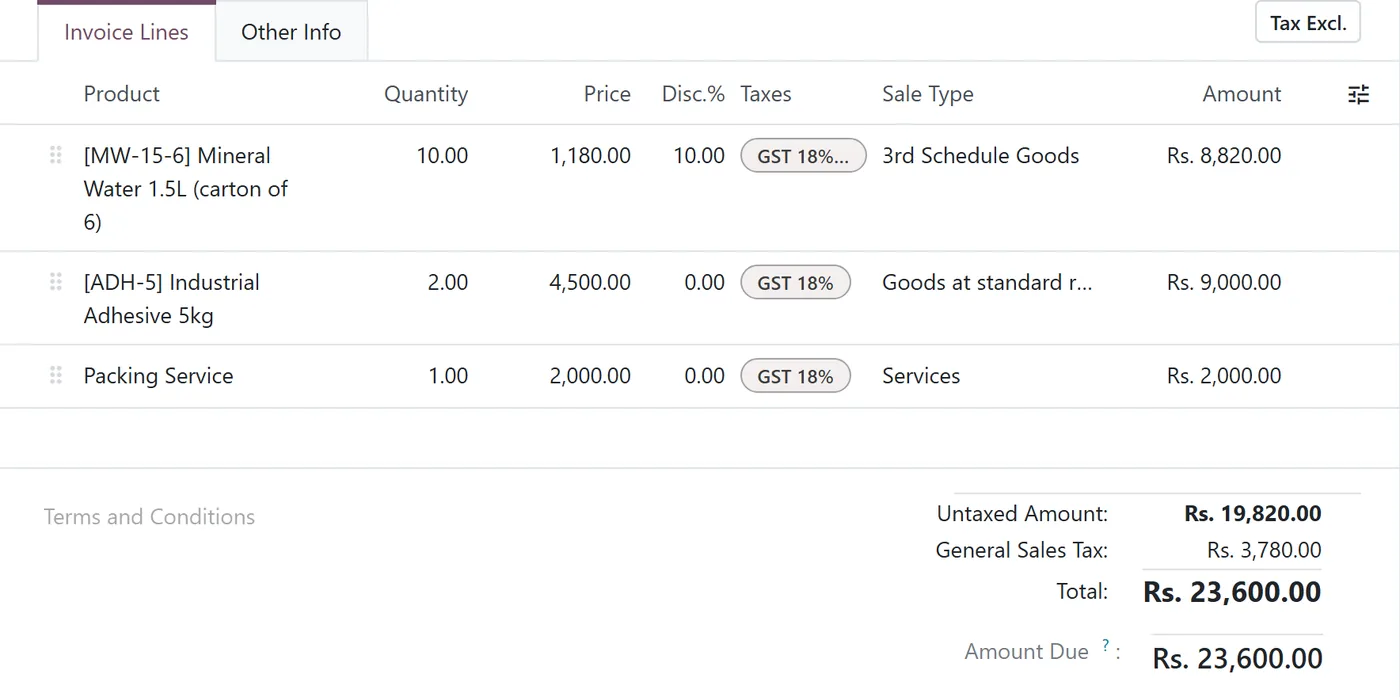
The whole Rs 1,180 discount comes out of your margin. That is how the Third Schedule is meant to work, but it surprises sales teams who assume the tax shrinks with the price. Three practical consequences:
- The product's Sales Price must be the printed retail price, including tax. If your sales price is a trade price, the tax will be wrong on every invoice.
- Price lists do not change the tax. Whatever price list you sell on, the tax still follows the product's Sales Price.
- The 18% is written into the tax formula, not in a rate field. If the rate ever changes, someone has to edit the formula itself; changing a percentage somewhere will not do it.
On the line, set the Sale Type to 3rd Schedule Goods. Odoo then reports the retail value to FBR alongside what you actually charged.
Limits, risks and what to test
- No connection, no FBR invoice. If Odoo's service or FBR is unreachable, the invoice stays posted in Odoo but not accepted by FBR. Someone has to watch for invoices stuck in Invalid or To Send; a saved filter on the invoice list does the job.
- Credit notes stay in Odoo. Plan the returns process with your adviser.
- Custom units of measure need an FBR code. Test every unit you actually sell in.
- Test mode is a database-wide switch. Never leave a production database in test mode after a trial run, or your invoices will say Valid (Test) and FBR will have nothing.
- Rehearse on a copy. Send ten real invoices from last month through the sandbox, one per sale type you use, before you touch production.
FAQ
Do I need Odoo Enterprise for FBR e-invoicing?
The module itself is part of Odoo Community, but invoices go through Odoo's online service, which checks the database's subscription and can refuse a database without an Enterprise subscription. Test it on your own database before you plan the rollout.
Which IP address does FBR need to whitelist?
The address shown as Odoo Static IP Address in the FBR settings. That is Odoo's service, which forwards your invoices to FBR, not your office or server address.
Can I send credit notes to FBR from Odoo 20?
Not with this module. It sends customer invoices and debit notes. Agree the handling of returns and refunds with your tax adviser before go-live.
Why is my Third Schedule tax the same after a discount?
Because Third Schedule goods are taxed on the printed retail price. Odoo's GST 18% 3rd tax calculates from the product's Sales Price, so line discounts reduce your net amount, not the tax.
What happens when FBR rejects an invoice?
The invoice status becomes Invalid and FBR's messages appear in the chatter, line by line. Fix the product, customer or tax data and send it again from the same invoice.
Next step
Going live on FBR is mostly a data project with a small setup attached. If you would like a partner to run the clean-up, the sandbox rehearsal and the cutover with your finance team, have a look at our Odoo implementation service. For the tax side, see fiscal positions in Odoo and our bookkeeping service.