
The first question every finance director asks about AI in Odoo is not "what can it do?" but "what can it change without me knowing?" In Odoo 20 the answer is better than most people expect. An agent acts with the rights of the person using it, it asks before it creates or changes records, and some parts of the database are off limits entirely. There are also two switches that quietly remove those safeguards, and those are the ones to decide on before launch. If you are new to how agents are put together, start with how Odoo 20 AI agents work.
Applies to: Odoo 20 Enterprise with the AI app. The write-with-confirmation behaviour described here is new in Odoo 20; the AI tools in Odoo 19 could read and navigate but not create or update records.
Who does an agent act as?
The user. Every tool an agent calls runs with the access rights of the person in the chat. If a sales rep cannot open vendor bills, the agent they talk to cannot read vendor bills either. If they cannot edit a confirmed order, neither can the agent.
This has two consequences. The good one: your existing access groups and record rules keep working, and you do not need a separate AI permission scheme. The awkward one: an agent is only as safe as your access rights already are. If half the company is an administrator because it was easier during go-live, the agent inherits that. Fix the groups first.
It also means you must test as the real users. An agent that behaves perfectly for an administrator tells you nothing about what it does for a warehouse clerk.
What is always off limits?
Some models are blocked for agents whatever the user's rights: every technical model whose name starts with ir. (menus and attachments can still be read), automation rules, user groups and privileges, user settings and registered devices. An agent cannot promote a user to an administrator group or edit an automation rule with its general record tools, even when an administrator is the one chatting.
When does an agent ask before acting?
Every time it creates or updates records. Instead of writing straight away, the agent posts a confirmation card in the chat with a preview, and waits.
- For an update, the preview lists each field with its current value and the new value. If the change hits several records, it says how many.
- For a create, it shows the records it is about to create and their values.
The card offers three answers: Yes, do it, Yes, always approve in this chat, and No, I want something else. Nothing is written until someone chooses the first or second.
There are guardrails even after approval. An agent cannot change read-only fields, file or image fields, and cannot update more than 50 groups of records in one go. And there is a ceiling of 20 tool calls per step of the conversation, so a runaway loop stops on its own.
What does "always approve in this chat" really cover?
More than the button suggests. Once someone picks it, every later create and update in that chat goes through without a card, and a note appears in the conversation saying auto-approval is on. It applies to the whole chat, including other agents this agent hands work to. It does not carry over to a new chat.
Our advice: allow it for low-risk agents, like one that tidies CRM lead descriptions, and train people not to use it on agents that touch money, stock or customer-facing documents. A preview is only a control if someone reads it.
Which settings should an administrator review?
Only administrators can create or change agents, skills and sources. Everyone else can use them but not reconfigure them. Before rollout, go through each agent's Skills tab.
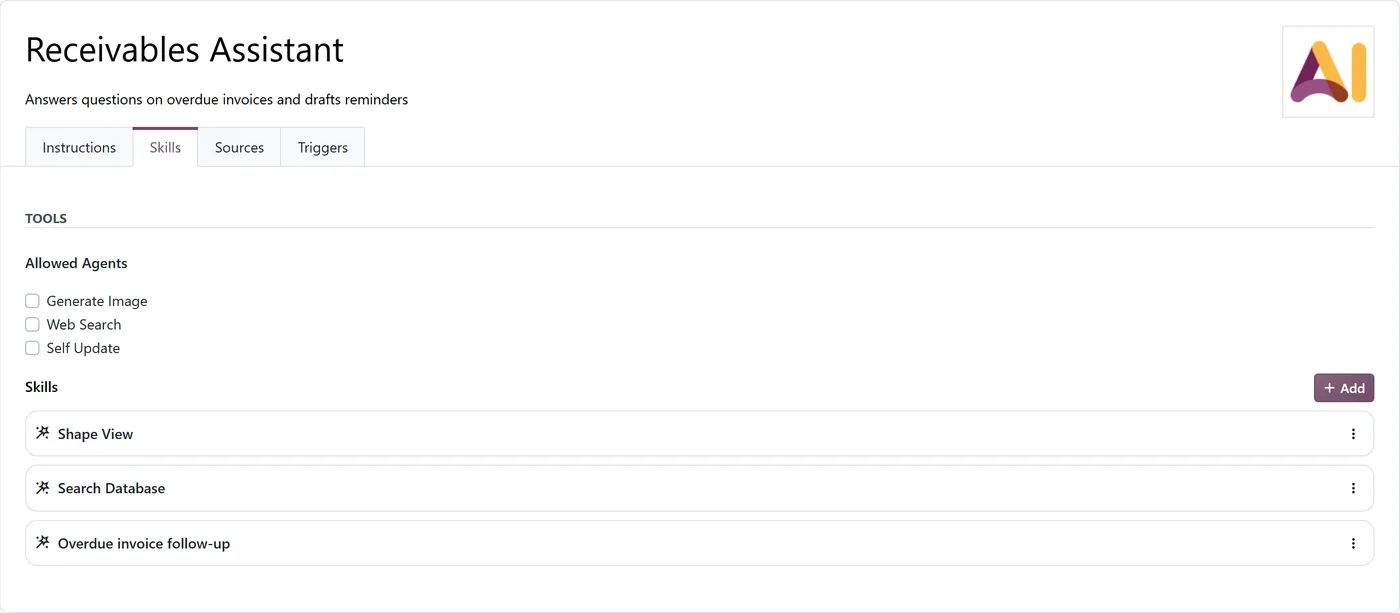
The three built-in switches. A new agent starts with Generate Image, Web Search and Self Update turned on. Web Search lets the agent bring outside information into its answers. Self Update lets it rewrite its own instructions, attach skills and add sources when a user asks it to "remember" something. It still shows a confirmation card, and it still needs a user with administrator rights to succeed, but you probably do not want that path open on a production agent at all.
The write skills. Update Records and Create Records are separate skills. An agent that only answers questions should not have them.
Allowed agents. Every agent listed there can be handed part of the job. Check that each one is itself set up to the same standard.
Build Automation. This skill lets an agent create and change automation rules that run agents on their own, through a dedicated tool with its own confirmation card. Only administrators can manage automation rules, so it only works for them, but it is the one skill that can create unattended AI behaviour from a chat. Keep it off everything except the agent your administrators use for setup.
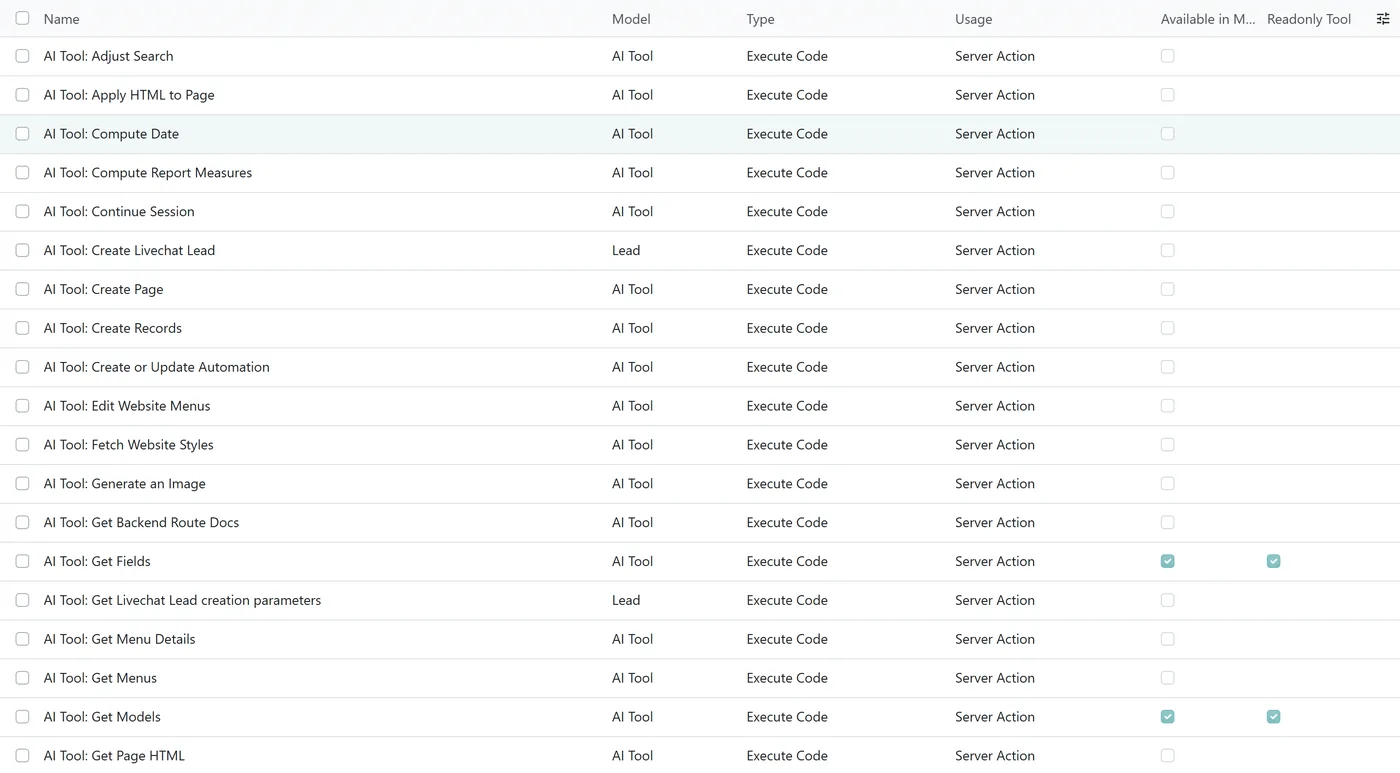
The AI > Configuration > Tools list, visible to administrators only, shows every action agents can use. If you also connect outside assistants through the MCP server, two more columns on that list decide what they can reach; see our MCP guide.
What about agents that run on their own?
Agents started by an automation rule are a different case: there is nobody in the chat to click Yes, so their changes are approved automatically. Odoo keeps every run in its own chat, and all administrators are added to it so they can read what happened. That is a good audit trail, but it is after the fact, so those agents need tighter skills and instructions than interactive ones. We cover them in detail in the automation guide.
A pre-launch checklist
| Control | What to check |
|---|---|
| Access groups | Users have only the groups their job needs. Nobody is an administrator for convenience |
| Built-in switches | Web Search, Generate Image and Self Update are on only where there is a reason |
| Write skills | Create Records and Update Records only on agents that must change data |
| Auto-approve | Written guidance on when users may pick "always approve in this chat" |
| Instructions | Refusals are explicit: what the agent must not do by itself |
| Testing | Real questions, tested with real user accounts, including a user with limited rights |
| Automated agents | An owner who reads the run chats weekly for the first month |
FAQ
Can an Odoo 20 AI agent change data without asking?
In an interactive chat, not unless a user chose "Yes, always approve in this chat", and then only in that chat. Agents run by automation rules are approved automatically, and each run is logged in a chat for administrators.
Does an AI agent bypass Odoo access rights?
No. Its tools run with the rights of the user in the chat. It cannot see or change records that user cannot see or change.
Can an AI agent give a user administrator rights?
No. User groups, privileges and technical models are blocked for agents, whatever the user's own rights.
Who can create or edit AI agents?
Only users with Settings (administrator) rights. Other users can chat with agents but cannot change them.
Should we switch off Web Search for business agents?
For agents that work on internal data, usually yes. It is on by default for new agents, and an agent that only needs your records and documents has no reason to use the open web.
Next step
Most AI risk in Odoo is really access-rights risk that already existed. If you want a second pair of eyes on your groups and agents before rollout, look at our Odoo audit and support service or our AI transformation service.