
An AI agent in Odoo 20 is not a chatbot bolted onto the side of the screen. It is a record you configure, like a product or a journal, with four parts: instructions that tell it what job it does, skills that give it things it can do, sources that give it things it can know, and tools underneath the skills that actually touch your data. Get those four right and the agent is useful from the first week. Get them vague and it will answer confidently from general knowledge, which is the last thing a finance or sales team needs.
Applies to: Odoo 20 Enterprise with the AI app installed. Only users with Settings (administrator) rights can create or change agents, skills and sources; everyone else can use them.
What changed from Odoo 19?
Three things matter if you set up AI in Odoo 19. What used to be called topics are now skills. An agent can now hand part of a request to another agent you allow it to use. And the AI no longer runs on your own OpenAI or Google key: every request goes through Odoo's own AI service and is paid with credits. We cover the credit side in a separate guide; this one is about building the agent itself.
Where do you build an agent?
Open AI > Agents. Odoo ships one ready-made agent called Odoo AI, a general assistant with the skills to search the database, open views, update and create records, generate images and search the web. Treat it as a demo of what is possible, not as the agent you roll out to a department.
A new agent opens on four tabs: Instructions, Skills, Sources and Triggers. Triggers are automation rules that run the agent without anyone chatting to it; that topic gets its own article. The other three are where the design work happens.
Instructions: the job description
The Instructions tab is a plain text field, and Markdown headings and lists work in it. This is the most important text you will write, because the agent reads it before every answer.
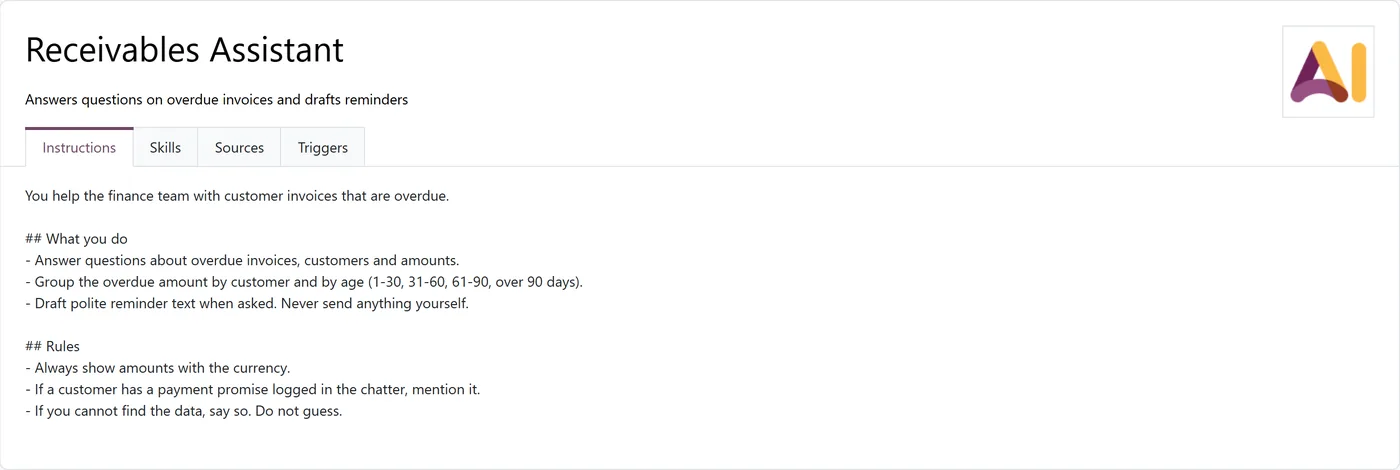
What works for us is the same structure every time:
- Who it helps and with what. "You help the finance team with customer invoices that are overdue" beats "You are a helpful accounting assistant".
- What it does, as a short list of tasks.
- Rules, especially the refusals. "If you cannot find the data, say so. Do not guess" earns its place in almost every agent.
- What it must not do by itself. If the agent should draft reminders but never send them, write that down.
Keep it under a page. Long instructions get followed unevenly, and the specific procedures belong in skills anyway.
Skills: what the agent can do
A skill has a title, a one-line description, its own instructions and, optionally, a set of AI tools. Build them under AI > Configuration > Skills, then attach them on the agent's Skills tab.
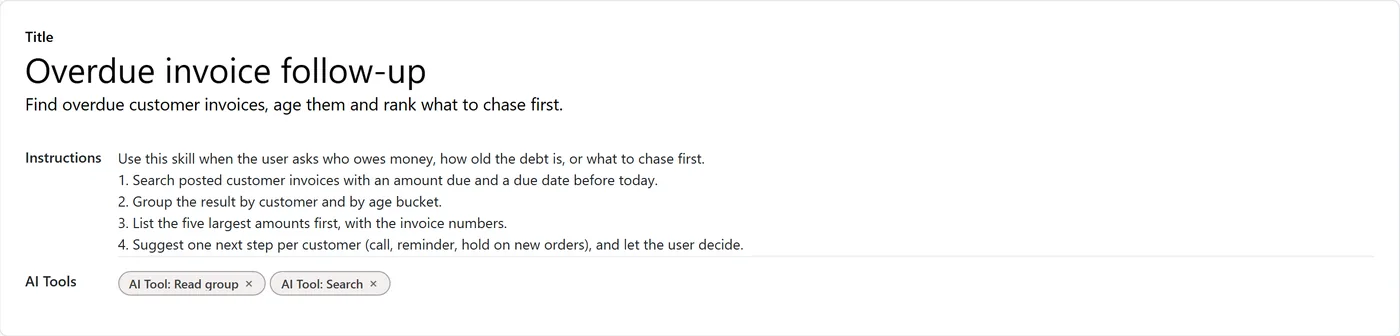
Two details decide whether a skill gets used well.
The description is what the agent reads first. The agent does not load every skill into every conversation. It looks at the titles and descriptions of the skills it has, and loads the full instructions and tools only when a request needs them. A description like "Find overdue customer invoices, age them and rank what to chase first" gets loaded at the right moment. A description like "Accounting helper" does not.
Skills come in two kinds. A skill with tools can act: search, read, create, update. A skill without tools is guidance only: vocabulary, business rules, how your company does things. Guidance skills are useful for things like "our credit terms" or "how we name projects", but they only help alongside a skill that can actually do something.
On the same tab you will find three switches: Generate Image, Web Search and Self Update. These are built-in abilities, and a brand-new agent starts with all three switched on. Decide on each one deliberately. A receivables agent has no reason to search the web or draw pictures, and Self Update lets the agent change its own instructions and skills when a user asks it to remember something.
Sources: what the agent knows
The Sources tab holds the documents the agent can quote from: uploaded files and web pages, plus documents from the Documents app or articles from Knowledge when those apps are installed. Odoo indexes each source and shows its status (Processing, Indexed, Incomplete, Failed or Skipped). A source can be switched off without deleting it.
When someone asks a question, Odoo pulls the five passages from your sources that best match it and gives them to the agent with the question. The answer comes back with numbered references to the sources it used.
Then there is one checkbox that changes the agent's character: Restrict to Sources. With it ticked, the agent answers only from its sources, the conversation, its skills and tool results. If the sources do not contain the answer, it says so instead of filling the gap from general knowledge. For a policy assistant, an HR handbook agent or a product support agent, tick it. For an agent whose job is to work with live records, leave it off, because the records are the source.
Three habits keep sources useful:
- One topic per file. A 200-page manual indexes into passages; a clear 10-page policy indexes into better ones.
- Remove what is out of date. An old price list in the sources will be quoted as happily as the new one.
- Check the status column after every upload. A source stuck on Failed or Incomplete is invisible to the agent.
Tools: what actually touches your data
Underneath every skill are tools, which are server actions marked for AI use. Odoo ships dozens of them: search, read group, open a list or a pivot, update records, create records, generate an image, and more. Only administrators see AI > Configuration > Tools, and that is the right place to keep them.
Tools run with the rights of the person chatting to the agent. An agent cannot read or change anything that user could not read or change by hand. That is your main safety net, and it is also why testing as an administrator tells you very little.
If you also use Odoo's MCP server to connect outside assistants, the same tool list carries two extra flags that decide what those assistants can reach. We covered that in our guide to the Odoo 20 MCP server.
Allowed agents: handing work on
The Allowed Agents field lets one agent pass part of a request to another. A front-desk agent can hand a stock question to an inventory agent that has the right skills and sources, instead of carrying every skill itself. Use it sparingly: every hand-off is another agent whose behaviour you have to test.
How we would design the first agent
- Pick one job with a clear owner. "Answer questions about overdue invoices" is a job. "Help finance" is not.
- Write the instructions first, including what the agent must refuse.
- Add the smallest set of skills that does the job, and switch off the built-in abilities it does not need.
- Add sources only if the job needs documents. Many good agents have none.
- Collect 20 real questions from the people who will use it, and test with their user accounts, not an administrator's.
- Read the answers, not just the success rate. A correct number with a wrong explanation is still a problem.
FAQ
Do I need Odoo Enterprise for AI agents in Odoo 20?
Yes. The AI app is part of Odoo Enterprise, and the AI requests themselves go through Odoo's AI service, which uses credits.
What is the difference between a skill and a tool in Odoo 20?
A tool is one action, such as searching records or creating one. A skill bundles instructions with the tools needed for a task, and a description the agent uses to decide when to load it.
What does Restrict to Sources do?
It makes the agent answer only from its sources, the conversation and its tool results. If the sources do not cover a question, the agent says so instead of answering from general knowledge.
Can an AI agent see data a user is not allowed to see?
No. Tools run with the rights of the user who is chatting, so the agent sees and changes only what that user could see and change in Odoo.
Who can create AI agents in Odoo 20?
Users with Settings (administrator) rights. Other users can chat with the agents but cannot change their instructions, skills or sources.
Next step
A well-scoped agent saves hours; a vague one creates cleanup work. If you want help choosing the first use case and building it properly, see our AI transformation service or our Odoo implementation service. For the bigger picture, read what is verified in Odoo 20 and what is still speculation.