
Go-live is not the day Odoo is switched on. It is a short, planned window in which the old system stops, the last data moves across, the numbers are proven to match, and people start working in Odoo. A runbook turns that window into a list of tasks with owners and times, so that on the day nobody has to decide anything they could have decided a month earlier.
This guide is a template for that runbook. The finance side, opening balances and open items, has its own guide; here we cover the whole weekend.
Applies to: any recent Odoo version. Screens are from Odoo 20; Lock Journal Entries is part of the Enterprise accounting app.
What goes into a cutover runbook?
One row per task, in order, with these columns:
| Column | Example |
|---|---|
| Step | C-14 |
| Task | Load open customer invoices |
| Owner | Finance lead |
| Depends on | C-12 customers loaded and checked |
| Planned start and duration | Saturday 10:00, 90 minutes |
| Check | Total open receivables in Odoo equals the old system's aged receivables report |
| Go / no-go | Who decides if the check fails |
The Check column is the heart of it. Every load is followed by a comparison with a number from the old system that someone printed before the freeze.
Rehearse it at least once
Run the whole runbook on a copy before the real weekend, with real timings. In the Odoo database manager, duplicate the prepared database with Neutralize ticked, so a rehearsal cannot send emails or trigger payments.
A rehearsal tells you three things you cannot guess: how long each load really takes, which files fail validation, and which step people forgot to write down. Update the runbook after every rehearsal. If a rehearsal fails badly, do another one; that is far cheaper than a failed go-live.
The week before
- Confirm the configuration freeze. No new settings after the final rehearsal unless the change is in the runbook.
- UAT signed off and users and access rights final, tested as those users, not as administrator. Our UAT guide covers both.
- Templates and file layouts fixed for every load, with the exact columns that worked in the rehearsal.
- Communication sent: when the old system stops, when Odoo opens, who to call.
- Go / no-go criteria agreed in writing, including the point after which you roll back rather than push on. Our rollback planning guide covers that decision.
Freeze and extract
- Stop transactions in the old system at an announced time. Remove write access if you can; a polite email is not a freeze.
- Print the control reports from the old system: trial balance, aged receivables and payables, stock quantity and value by product and location, open sales and purchase orders.
- Extract the final files using the same queries as in the rehearsal.
Load, in dependency order
Master data first, then open documents, then balances. A typical order:
- Contacts, then products and prices (if not already loaded before the freeze, which is better where possible). Decide who owns each kind of record before the first load, not after.
- Open sales orders and open purchase orders.
- Open customer invoices and vendor bills.
- Opening stock quantities.
- Opening general ledger balances.
For every file, use the import screen's Test button first. It runs the import checks without saving anything and lists the problems row by row.
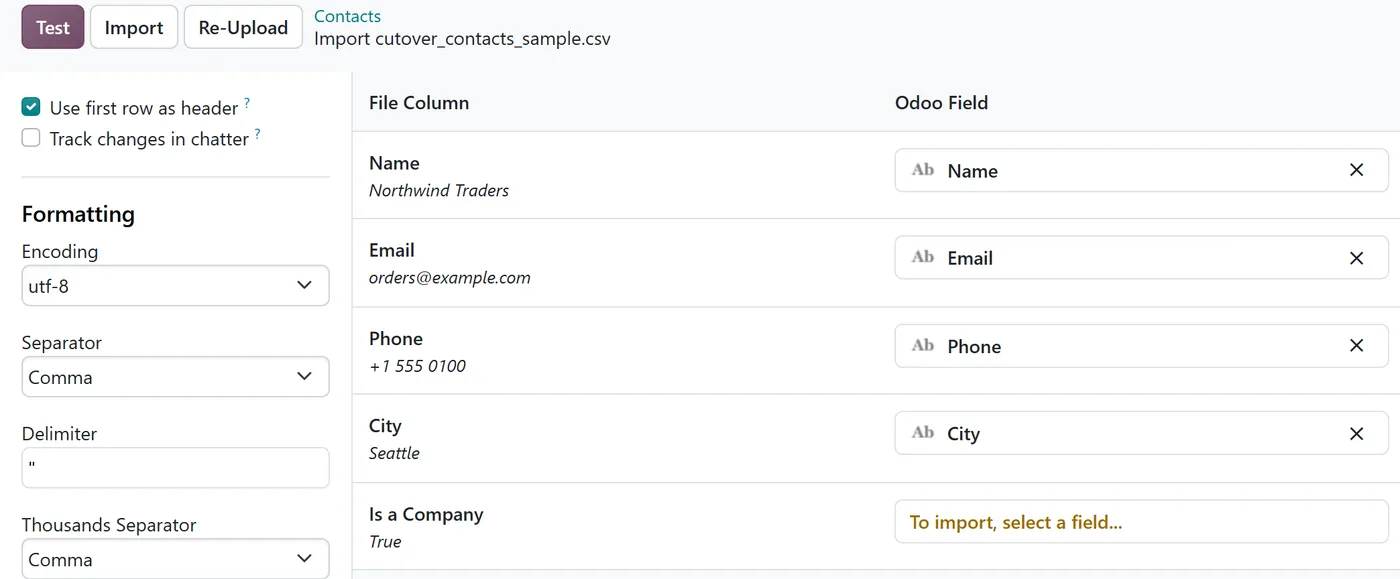
Two details from the same screen. Columns Odoo cannot match automatically show To import, select a field, and a column left unmapped is not imported. And Track changes in chatter is off by default, which keeps large imports fast; switch it on only when you want each imported change logged on the record.
Opening stock and its accounting date
If your stock is valued automatically, the stock count creates accounting entries. Make sure they land on the cutover date, not the day someone happens to press Apply. Physical Inventory has an optional Accounting Date column, and the inventory adjustment confirmation also accepts an accounting date.
Decide in the runbook who loads quantities, at which date, and how the resulting stock value is compared with the old system's valuation.
Prove the numbers
After each load, compare against the control reports:
- Trial balance at cutover date, account by account.
- Receivables and payables, by partner and in total.
- Stock quantity by product and location; stock value in total.
- Count of open sales and purchase orders.
Differences are investigated and fixed before the next step, not at the end. Our migration validation guide lists more checks.
Lock the past
Once the opening position is proven, lock it, so nobody posts into the old period by mistake. In Odoo 20 accounting, Lock Journal Entries sets separate locks:
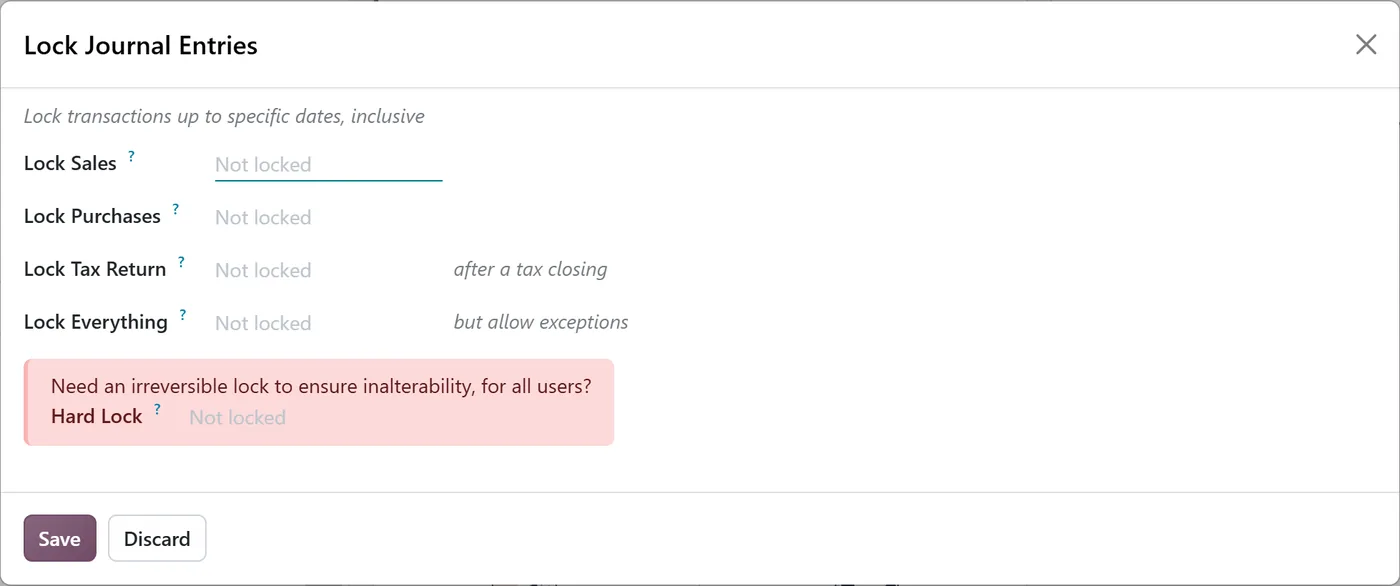
- Lock Sales and Lock Purchases for the sales and purchase journals.
- Lock Tax Return, typically after a tax closing.
- Lock Everything, which still allows exceptions to be granted.
- Hard Lock, which cannot be undone, for anyone. Do not use it on go-live weekend; wait until the first period after go-live has been reviewed.
One behaviour surprises people: if someone creates an entry dated inside a locked period, Odoo does not refuse it. It moves the entry to the next open date. That protects the locked period, but it means a late entry for the old system quietly lands in the first open day. Tell the finance team, and review the first days' entries.
Go / no-go and the first days
At the agreed time, the decision owner reviews the checks. Go: open Odoo to users, keep the old system read-only. No-go: follow the rollback plan without debate, because you already agreed the criteria.
For the first days after go-live, plan hypercare: consultants and key users on hand, a short daily meeting, a single issue list, and extra checks on the first invoices, receipts, deliveries and payments.
FAQ
Should cutover happen at month end?
Usually yes, because opening balances are then a clean closing trial balance. Where that is not possible, agree how the partial month will be handled before the rehearsal.
How long should the freeze be?
As short as the rehearsal proves possible. The rehearsed timings, plus a buffer, set the freeze window.
Can we load everything before the freeze?
Master data, yes, and you should, with a controlled way of capturing changes during the last days. Open documents and balances must come after the freeze, or they will not match.
Next step
If you are planning an Odoo go-live, our implementation team can build the runbook with you, run the rehearsals, and be on hand for the weekend and the hypercare that follows.