
Odoo 20's Point of Sale can report every sale to FBR as it happens and print the FBR invoice number and QR code on the receipt. For a Tier-1 retailer that removes the separate fiscal software many shops run beside their till. The switch itself is a few fields in the POS settings. What decides whether day one goes smoothly is the product and payment data behind it, because Odoo checks all of it at the moment the customer pays.
Applies to: Odoo 20 Point of Sale with the "Pakistan - Point of Sale" module, for a company in Pakistan. New in Odoo 20.
What does FBR expect from a Tier-1 retailer's POS?
The short version, from FBR's own instructions: every sale is recorded in FBR's system in real time, the receipt carries FBR's 18-digit fiscal invoice number alongside your own receipt number, and the retailer collects a POS service fee of Rs 1 per invoice from the customer and pays it over with the monthly sales tax return. Whether your business is Tier-1 is a question for your tax adviser; this article is about making Odoo do its part once it is.
How do you switch it on in Odoo 20?
Each shop is set up separately, in Point of Sale > Configuration > Settings, in the block Pakistan electronic receipts (FBR).
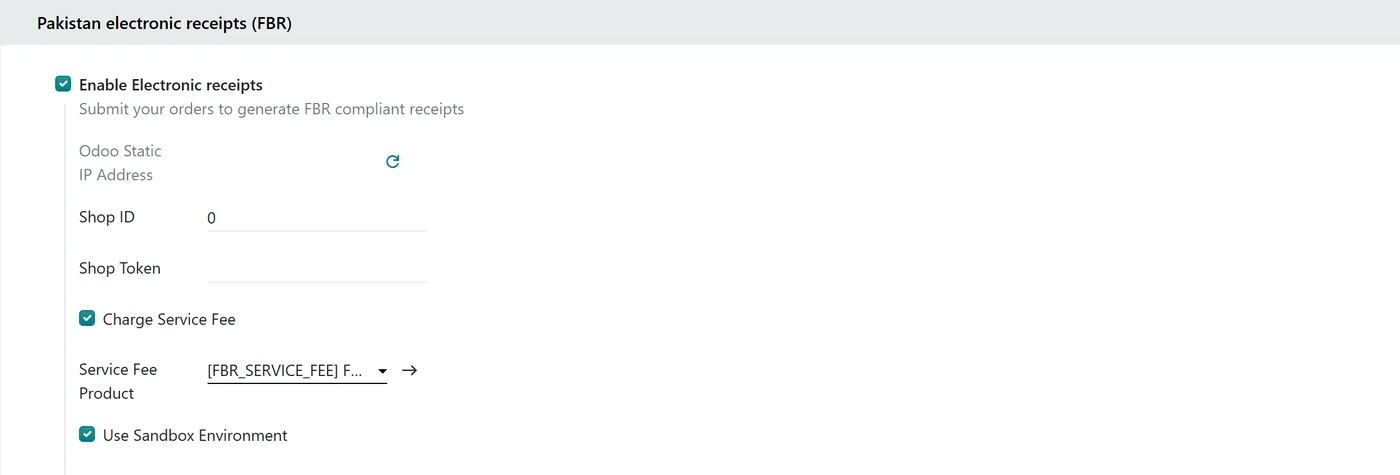
- Enable Electronic receipts.
- Odoo Static IP Address: the address of Odoo's service, which forwards your sales to FBR. This is the address FBR sees, not your shop's internet connection.
- Shop ID and Shop Token: both issued by FBR when you register the point of sale.
- Charge Service Fee: adds the Rs 1 fee to every receipt, using a ready-made FBR Service Fee product. It carries no tax and cannot be sold on its own. Point it at a liability account, not revenue, because the money belongs to FBR.
- Use Sandbox Environment, with a separate Test Shop ID, for trial runs before go-live.
What must be in place before the first sale?
This is where most of the work is. Odoo reports each sale when it is paid, and it checks the order first. Some problems stop the cashier on the spot; others let the sale through but leave the receipt without fiscal value. It is worth knowing which is which before you train your staff.
| Problem | What happens at the till |
|---|---|
| A product has no sales tax on it (a further tax alone does not count) | The sale cannot be completed |
| A line goes against the rest of the order, for example a return inside a normal sale | The sale cannot be completed |
| A product has no HS code | The sale completes, but FBR is not told |
| A product has no Internal Reference | The sale completes, but FBR is not told |
| A payment method has no FBR Payment Code | The sale completes, but FBR is not told |
| A price was typed in as negative | The sale completes, but FBR is not told |
| The Shop ID or token is missing | The sale completes, but FBR is not told |
Payment methods need an FBR Payment Code: Cash, Card or Cheque. New cash methods get Cash automatically; card and bank methods you set yourself. A customer who pays with two different methods is reported as a mixed payment, which is fine.
On an FBR shop the order-level discount button is greyed out, because FBR has no way to record a discount on the whole order. Line discounts still work.
What happens when FBR says no?
The order is saved as Unsuccessful, and the customer's receipt prints RECEIPT WITHOUT FISCAL VALUE at the top, so nobody mistakes it for a fiscal receipt. In the back office, the order shows FBR's error. You can download the exact request Odoo tried to send, which is what your support partner will ask for first. Once the data is fixed, resend the order from the back end.
When FBR accepts the sale, the order stores the FBR invoice number, the receipt prints an FBR QR code, and the order's history keeps a copy of what was sent.
Returns are reported as refunds and point back to the original sale, so process them as returns against the original order, not as a new sale with negative lines.
Third Schedule goods at the till
Goods taxed on their printed retail price work at the POS too, but through a separate switch: the Is FBR 3rd Schedule Product checkbox on the product's Point of Sale tab. Odoo then reports the sale value from the product's Sales Price, and any discount as the difference.
If you also sell that product on invoices, set its invoice Sale Type to 3rd Schedule Goods as well. The two settings are separate, and it is easy to set one and forget the other. As on invoices, the product's Sales Price must be the printed retail price, including tax.
Limits, risks and what to test
- The internet line is now part of the till. Sales are reported when they are paid. If the connection drops, sales continue but come out without fiscal value until you resend them. Someone has to check for unsuccessful orders at the end of every day.
- Data gaps show up at the busiest moment. An HS code missing on one product will not show up in testing unless you test that product. Before go-live, run a report of products available in POS without an HS code or Internal Reference, and fix them all.
- The sandbox is a real rehearsal. Put one of each thing through it: a normal sale, a discounted sale, a Third Schedule item, a card payment, a split payment and a return.
FAQ
Does Odoo 20 POS print the FBR invoice number and QR code?
Yes. When FBR accepts the sale, Odoo stores the FBR invoice number on the order and prints an FBR QR code on the receipt. If the sale could not be reported, the receipt says RECEIPT WITHOUT FISCAL VALUE instead.
How is the Rs 1 FBR POS fee handled in Odoo?
Switch on Charge Service Fee in the shop's FBR settings. Odoo adds its FBR Service Fee product, Rs 1 with no tax, to each receipt. Post it to a liability account, because you collect it on FBR's behalf.
What if the internet is down during a sale?
The sale still completes, but it is marked unsuccessful and the receipt has no fiscal value. Resend those orders from the back office once the connection is back.
Why does the till refuse to complete a sale?
Usually because a product on the order has no sales tax, or the order mixes a return with normal sales. Add the correct tax to the product, or process the return separately against the original order.
Next step
A retail go-live with FBR is won in the product data and the staff briefing, not in the settings screen. If you would like help preparing both, see our Odoo implementation service, and for everything else the till can do, our Odoo Point of Sale guide.