
Most companies still retype things into Odoo: a supplier's price list arrives as a PDF, a new customer sends their details as a scanned form, an event sign-up sheet comes in as a spreadsheet. In Odoo 20, an AI agent can read that file and create the records for you, after showing you exactly what it is about to create. It is genuinely useful. It is also the feature where a careless setup does the most damage, so it is worth understanding what happens between "here is the file" and "records created".
Applies to: Odoo 20 Enterprise with the AI app. Creating and updating records is new in Odoo 20; in Odoo 19 the AI could search and open screens but not write data.
What does an agent need to create records from a file?
Two skills, both added from the agent's Skills tab:
- Search Database, which includes the tool that reads attachments, images and file fields.
- Create Records, which includes the tool that creates records, and always asks first.
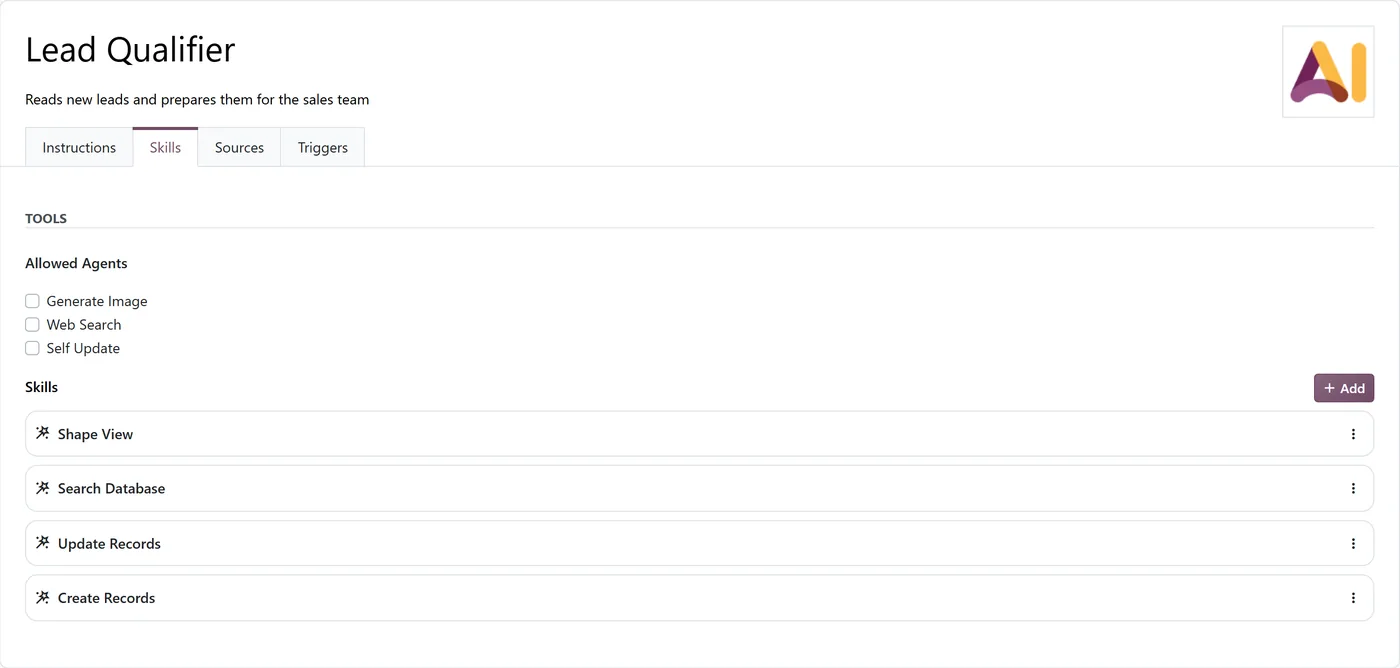
Create Records and Update Records are separate skills, not switches that come with every agent. An agent you built to answer questions cannot write anything until someone deliberately adds one of them. Keep it that way for agents that do not need to write.
How does the flow actually work?
- You give it the file. Attach it in the chat, or point the agent at a file already attached to a record ("the price list on this vendor"). The agent reads only files you gave it in the chat or that belong to the record you name. It will not go looking through other people's attachments for something that sounds similar.
- It reads the file, up to five files at a time. A PDF is sent as it is. An image is reduced to at most 1,024 pixels on each side first, so small print on a large scan can get lost. Other files, such as spreadsheets and Word documents, are read through the text Odoo extracts from them.
- It prepares the records. The agent works out the target model and the field values, and Odoo checks that every field it wants to fill really exists before anything else happens.
- It shows you a preview. A confirmation card lists the records and their values, with a question at the end. You choose Yes, do it, Yes, always approve in this chat, or No, I want something else.
- Odoo creates them, or tells you why not. If a record breaks a database rule, such as a duplicate reference or a missing required value, the creation is rolled back cleanly and the agent is told what went wrong.
Everything runs with your own access rights. If you cannot create products by hand, the agent cannot create them for you.
Where it works well
- Contacts from forms and business cards. Name, company, email, phone, address: short, well-structured, easy to check in the preview.
- Leads from enquiry emails or PDFs saved on a record.
- Small lists: ten new products from a supplier sheet, twenty attendees from a sign-up form.
- Filling a draft you then review, such as a quotation's lines from a customer's written request.
Where to be careful
Numbers and prices. Reading "1,250.00" correctly is easy; knowing whether it includes tax, which currency it is in and whether it is per unit or per box is not. Check every monetary field in the preview.
Linked records. A product needs a category, a contact may need a country, a line needs a product. Check that each linked value in the preview points to the right existing record, and look for blanks as well as wrong values.
Big files. A 400-line price list is an import, not a chat. Use Odoo's import tool with a template, and keep the agent for the messy ten-line cases where a template would take longer than the job.
"Always approve in this chat". On data entry, that choice turns a checked process into an unchecked one for the rest of the conversation. We tell users never to use it on this kind of agent. More on approvals in our AI governance guide.
A practical setup for data entry
| Setting | Our recommendation |
|---|---|
| Agent | One agent per kind of input, for example "New supplier onboarding" |
| Skills | Search Database and Create Records. Add Update Records only if it must also correct existing records |
| Built-in switches | Web Search, Generate Image and Self Update off |
| Instructions | The exact fields to fill, the fields to leave for a person, and "if a value is unclear, leave it empty and say so" |
| Users | Only the people who already do this data entry by hand |
| Review | Spot-check created records daily for the first two weeks |
The instruction "if a value is unclear, leave it empty and say so" does more for data quality than anything else on this list. An empty field gets noticed and filled. A confidently wrong one gets invoiced.
FAQ
Can Odoo 20 AI create records from a PDF?
Yes. An agent with the Search Database and Create Records skills can read a PDF or image you attach and create records from it, after showing you a preview and asking for confirmation.
Does the AI create records without asking?
In a chat, no. It shows a preview and waits, unless someone chose "Yes, always approve in this chat". Agents run by automation rules are approved automatically.
How many files can the AI read at once?
Up to five at a time. For more, work in batches, or use Odoo's import tool for large structured lists.
Can the AI create records I am not allowed to create?
No. It works with your access rights, so it can only create what you could create by hand.
Should we use AI instead of Odoo's import tool?
For large, structured lists, no. The import tool is faster and repeatable. AI is best for small, messy inputs where preparing an import file would take longer than the data entry itself.
Next step
Data entry is often the first AI win, and the easiest to get wrong at scale. If you want help choosing which inputs to automate and writing the agent's instructions, see our AI transformation service. For moving large volumes of data, read about common integration mistakes first.