
In Odoo 20, Field Service has a new foundation. Up to Odoo 19 it was built on Project: each intervention was a task. In Odoo 20 it is built on Planning: each intervention is a shift with a customer. For businesses that dispatch technicians, that is more than a technical detail. Capacity, conflicts and the technician's day are now planned in the same place as the rest of the workforce.
Applies to: Odoo 20 Enterprise, Planning and Field Service. Screens are from Odoo 20.
What is an intervention in Odoo 20?
A Planning shift that carries field service information. Next to the usual resource, date, allocated time and role, the shift has a Customer (with address and phone), a Priority, a link to a Sales Order for billing, and fields such as Under Warranty. It moves through Draft, Scheduled, In Progress and Completed.
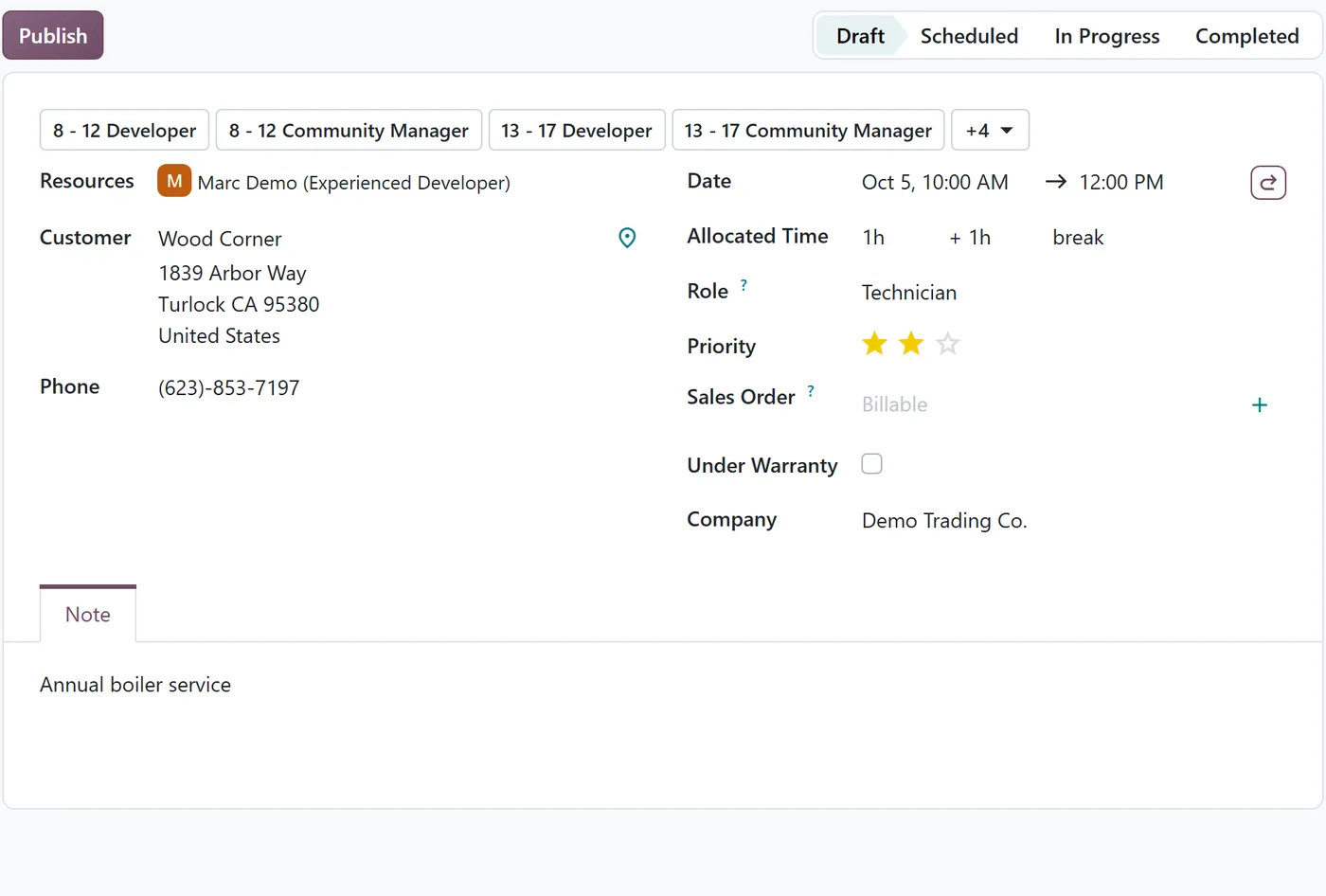
Because it is a shift, Planning's strengths apply directly: conflicts with the technician's other shifts are flagged, roles control who can take which job, and the Gantt view shows everyone's day at once.
How do you set it up?
In Planning > Configuration > Settings, section Operations, tick Field Service ("Schedule onsite interventions, invoice time and materials, and complete custom worksheets").
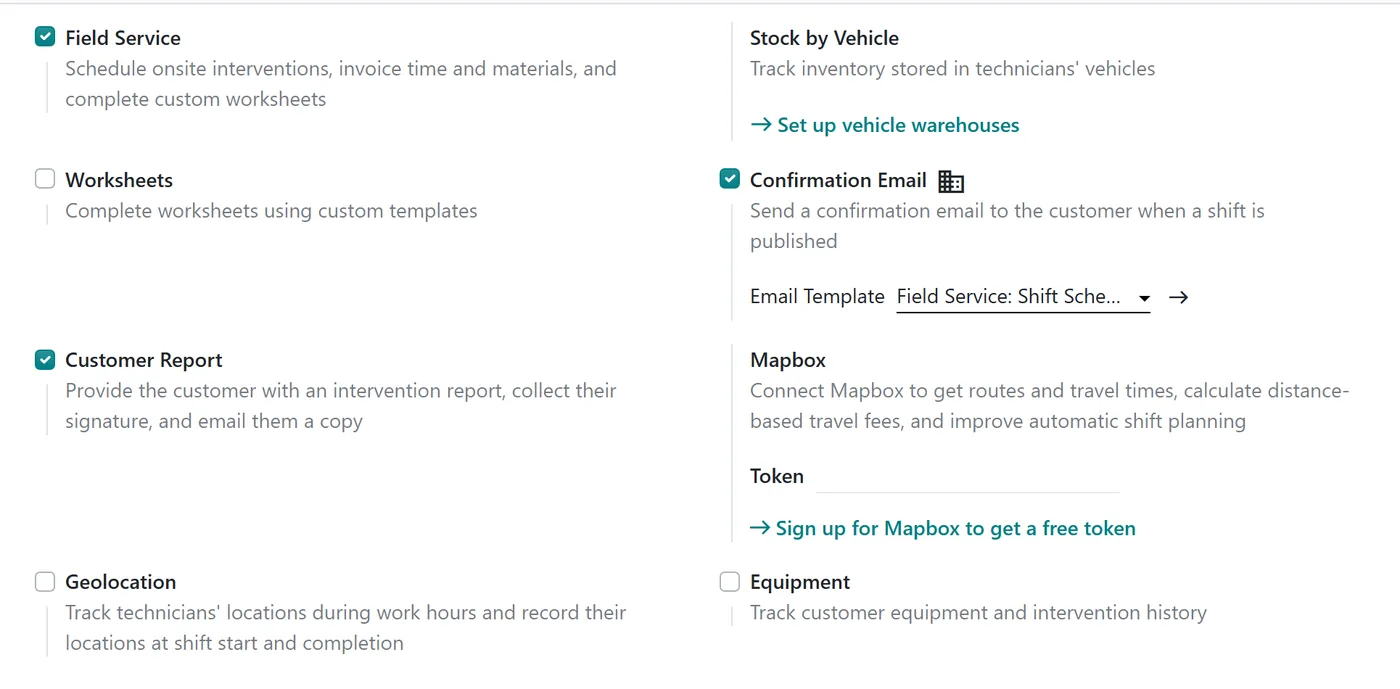
The options around it decide how far you take it:
| Setting | What it gives you |
|---|---|
| Worksheets | Custom worksheet templates the technician completes on site |
| Customer Report | An intervention report with the customer's signature, emailed as a copy |
| Confirmation Email | An email to the customer when a shift is published |
| Geolocation | Technicians' locations during work hours, recorded at shift start and completion |
| Mapbox | Routes and travel times, distance-based travel fees and better automatic planning (needs a Mapbox token) |
| Stock by Vehicle | Inventory held in technicians' vehicles |
| Equipment | Customer equipment and its intervention history |
| Billing and Products | Invoicing time and materials through the linked sales order |
| Website Form | Intervention requests from your website |
Start with Field Service, Customer Report and Billing. Add the rest when the basic flow runs well.
A note on geolocation
Geolocation is useful for dispatchers and sensitive for employees. Odoo 20 limits what it keeps: it holds only a technician's latest live location, erases it once the last shift of the day is over, and a scheduled job clears any location older than a day. Even so, tell your technicians what is tracked and why, and check what employment and privacy rules in your country require before switching it on.
What changes if you use Field Service on Odoo 19?
The model changes from tasks to shifts, so an upgrade is a project in its own right, not a button:
- Retest your process end to end: request, scheduling, the technician's day, report, signature and invoice.
- Review reports and automations built on field service tasks. Anything that read project tasks needs a fresh look.
- Train dispatchers on Planning, not just the new screens. The Gantt and conflict logic is where the benefit is.
Plan it as part of the upgrade, on a test copy, with real users trying real days.
FAQ
Is Field Service part of Community?
No. Field Service and Planning are Enterprise apps.
Do technicians need a separate app?
They use Odoo in the browser or the Odoo mobile app, working from their published shifts.
Can customers request interventions online?
Yes, with the Website Form option, requests arrive from your website.
Next step
If you dispatch technicians and are planning a move to Odoo 20, our implementation team can map your current process onto Planning and run the test days with you. For a broader view of the app, see our Odoo Field Service guide.