
An approval matrix answers one question for every document that needs a second pair of eyes: who approves this, at what amount, and in what order. Companies usually have the answer on paper. The trouble starts when it has to become system configuration, because Odoo has four different approval mechanisms, each built for a different job.
This guide starts with the matrix, then maps each row to the Odoo tool that fits it, including the limits we see clients run into.
Applies to: Odoo 20. The Approvals app and Studio are Enterprise. Purchase order approval, time off and expense validation are in Community.
Start with the matrix, not the software
Before anyone opens Odoo settings, fill in one table per document type:
| Document | Condition | Approver | Order | Backup when absent |
|---|---|---|---|---|
| Purchase order | Total above the agreed limit | Purchase manager | Single step | Deputy purchase manager |
| Purchase order | Total above a higher limit | Finance manager | After purchase manager | CFO |
| Time off | Any | Employee's manager | Single step | HR officer |
| Expense report | Any | Employee's expense approver | Then finance | Finance lead |
| Non-standard request | Any | Named approvers | Any order | Named deputy |
Three columns cause most of the later rework:
- Condition. Is the limit before or after tax? In which currency? Odoo is precise about this, so you need to be too.
- Order. Does the second approver wait for the first, or can they approve in parallel?
- Backup. Who approves when the approver is on leave? Without an answer, documents simply wait.
Purchase orders: the built-in approval
For many companies, purchase approval is the first and only row that matters. Odoo's built-in option is in Purchase > Configuration > Settings.
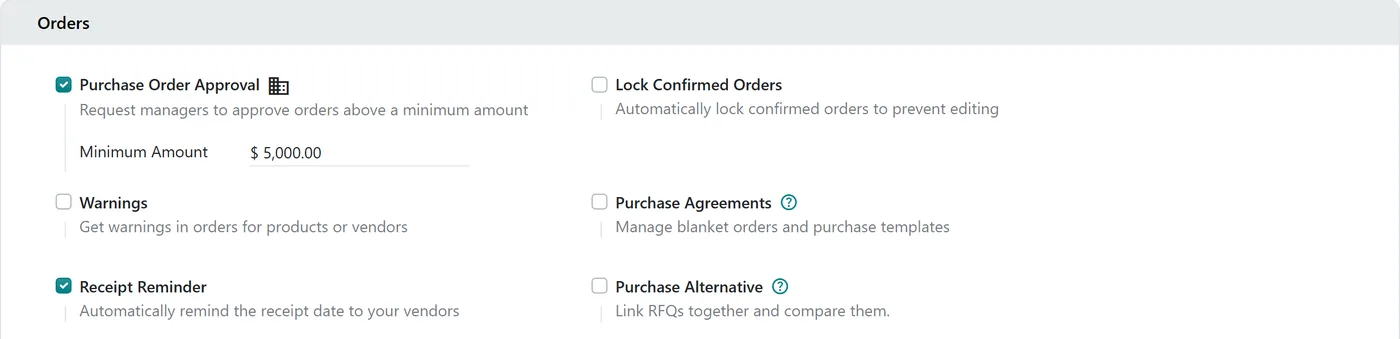
How it behaves, precisely:
- There is one minimum amount per company, in the company currency.
- The order total is compared including taxes. Orders in another currency are converted at the order date.
- Below the amount, confirming approves the order. At or above it, the order goes to To Approve.
- Purchase administrators skip the step. If a user with the Purchase Administrator right confirms an order above the limit, it is approved straight away. The same users are the ones who approve waiting orders.
That last point decides whether the setting fits your matrix. If your purchase managers also raise orders, their own orders are not approved by anyone else. And if you need two levels of amount, this setting has only one.
The Approvals app: for requests that are not yet documents
The Approvals app (Enterprise) handles requests: a business trip, a contract, a payment request, a purchase that is not planned yet. Each type of request is an approval category.
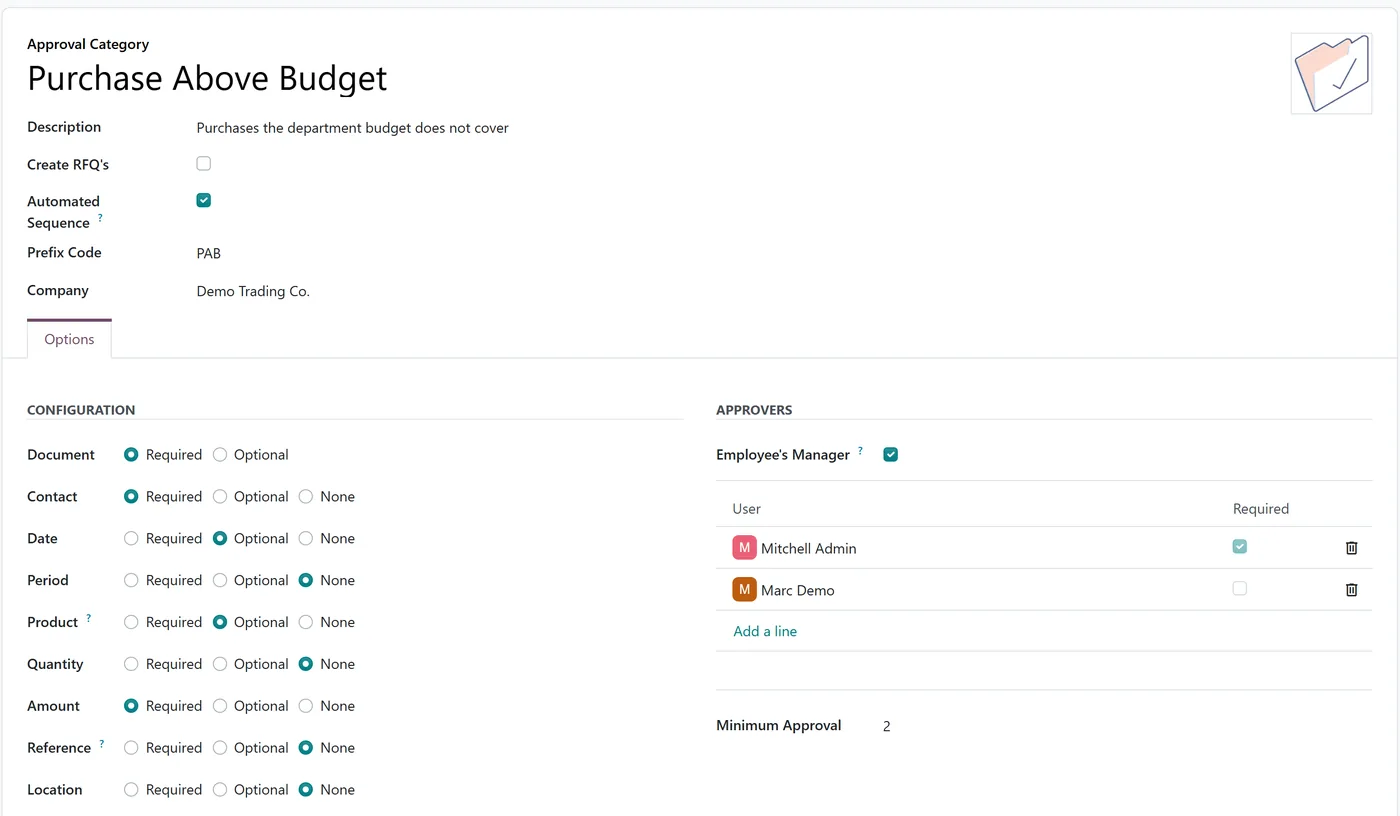
What you set per category:
- Which fields the request needs, each Required, Optional or None: amount, contact, date, product, and others. Document can be Required, so a request cannot be submitted without an attachment.
- Approvers. The Employee's Manager option adds the requester's manager as a required approver. Other approvers are listed by user, each with a Required tick.
- Minimum Approval, the number of approvals needed. It cannot be lower than the number of required approvers.
- Automated Sequence with a prefix, so requests get numbers like PAB00001.
How a request is decided: it is approved once the number of approvals reaches the minimum and every required approver has approved. One refusal refuses the request.
One change to know about if you are upgrading: Odoo 19 had an option to make approvers act one after another. In Odoo 20 the category has no such option, so approvers are asked in parallel. If your matrix needs a strict order, use Studio approval rules instead, below.
Studio approval rules: approvals on any button
Studio (Enterprise) can put approval rules on a button of any model, for example Confirm on a purchase order or sales order. When someone clicks the button, the rules for that button must be satisfied before the action runs, and the approvers get an activity asking them to act.
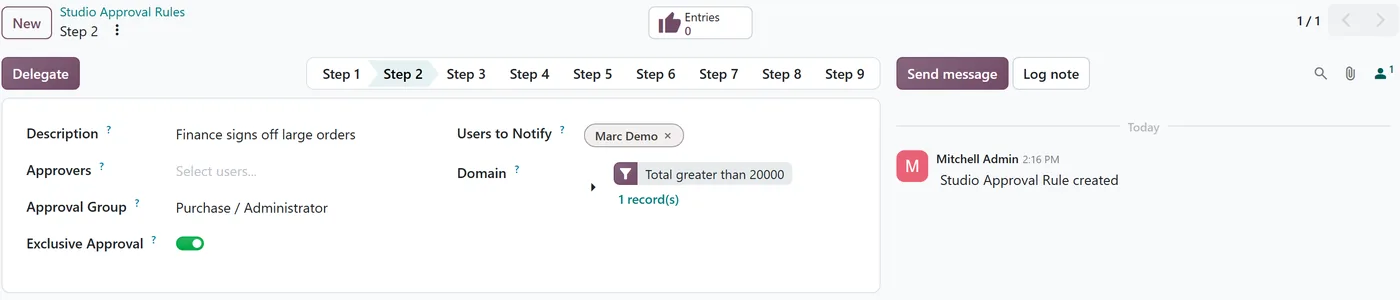
Each rule has:
- A step, from 1 to 9. Steps are requested in order, which is how you build a two-level approval.
- Approvers, as named users, or an Approval Group so anyone in that group can approve.
- A domain, so the rule only applies to some records, for example orders above 20,000.
- Exclusive Approval, which stops the same person from approving another rule on the same record. That is how you enforce "two different people".
- Users to Notify when the step is approved or rejected.
- Delegation: an approver can delegate to someone else until a date, which answers the Backup column of your matrix.
With the rule in the screenshot and a first step for the budget holder, a purchase order above 20,000 needs two different people before it confirms. The built-in purchase setting cannot express that.
Studio rules are configuration, not code, but treat them like code: document every rule, test it as a normal user in UAT, and review the list after each upgrade.
Time off and expenses: use the app's own validation
Do not rebuild these in Studio. Both apps have validation designed for them:
- Time off. Each time type (Time Off > Configuration > Time Types) has its own Time Off Validation: none, the time off officer, the employee's approver, or both.
- Expenses. Each employee has an expense approver on their employee record, and finance then processes approved reports.
Your matrix rows for these become employee and time off type settings, which HR can maintain without a consultant.
Which tool for which row?
| Need | Best fit |
|---|---|
| One approval level on purchase orders above an amount | Purchase Order Approval setting |
| Several levels, several people, amount conditions on a document | Studio approval rules |
| Requests that are not yet a sales or purchase document | Approvals app |
| Time off and expenses | The app's own validation |
FAQ
Can the approval limit be different per department?
Not with the built-in purchase setting, which has one amount per company. With Studio rules, the domain can check the department or any other field on the document, so yes.
Can someone approve their own document?
With the purchase setting, a purchase administrator's own orders are approved when they confirm them. With Studio, use Exclusive Approval and choose approvers so the requester is not among them. Test both as the real users.
What happens to waiting approvals when someone leaves?
Approvals assigned to a named user wait for that user. Group-based approvers and delegation avoid that, which is why we prefer groups for anything that must not stall.
Next step
Our approvals planning guide walks through the Approvals app itself. If you want your matrix turned into tested configuration, talk to our implementation team.