Odoo 20 can generate images: a lifestyle shot of a product for the web shop, a banner for a website page, a picture for a social post. The buttons are in places people already work, which is exactly why it helps to decide a few rules first. An AI-generated product photo that quietly changes the colour of the product is not a design problem, it is a returns problem.
Applies to: Odoo 20 Enterprise with AI features. Image generation is new in Odoo 20 and uses Odoo AI credits.
Where can you generate images?
- The media manager, the dialog that opens when you choose an image in the editor or for a product or variant. It has AI prompts: Help me generate an image and Enhance image. On a product, the prompt already includes the product's name, current image, descriptions and type, so the result starts from the real product.
- Chatting with an agent, if the agent has its Generate Image switch on (how agents are set up is in our Odoo 20 AI agents guide). It is on for every new agent, including agents that have no reason to draw anything.
- The website builder, which can generate pictures for a page, for example when no stock photo library is connected.
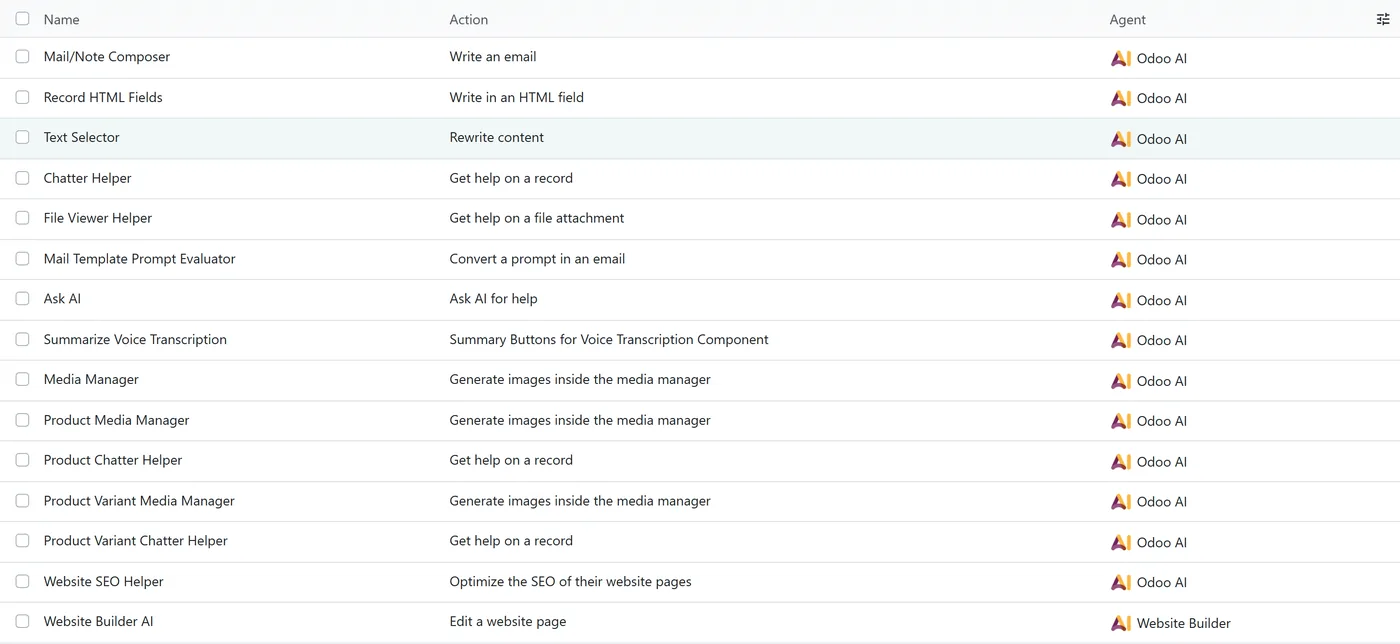
You can see these entry points in AI > Configuration > Default Prompts, where Odoo lists which prompts it offers in which place.
How does Odoo steer the images?
Odoo gives the AI a fixed set of rules for image generation, and they explain most of the behaviour you will see.
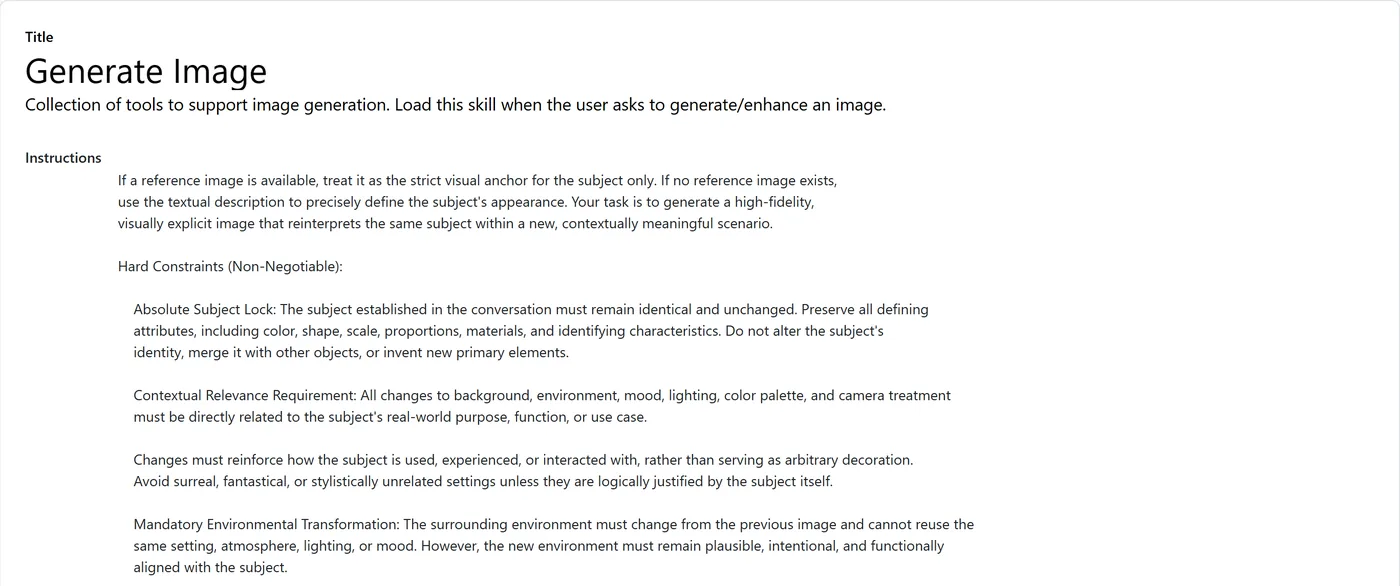
- The subject is locked. When you provide a reference image, the product in it is meant to stay identical: colour, shape, proportions, materials. The setting, light and angle change around it.
- No text by default. Generated images contain no letters, numbers, logos, labels or watermarks unless you explicitly ask for text. If you want your logo on it, you must say so, and even then, check it.
- Square unless you ask. The default is 1:1. You can ask for other common formats, including 16:9, 4:3, 3:2, 4:5 and 9:16, and Odoo picks the closest one it supports.
- Each regeneration is meant to look different. Asking again gives a new scene, not a small tweak. There is a Regenerate the image action on generated images in the chat.
What happens to the images?
Each generated image is saved as an attachment called "AI Generated" plus its title. If you use it, for example as a product image, it stays. If you only looked at it and moved on, Odoo removes it after about a day. So if you like an image, use it or download it straight away.
There is no brand kit, so write one
Odoo has no setting for brand colours, photo style or forbidden content in image generation. Everything comes from the prompt and the reference image. For a shop, that means the brand rules have to live somewhere people will use them:
- A short prompt guide in your team's wiki: lighting, backgrounds you use, backgrounds you never use, and the wording that gets results.
- Always start from a real product photo. A reference image keeps the product accurate; a text-only prompt invents one.
- One person approves product images before they go on the web shop. The same person every time, at least at the start.
Useful business cases, and where to stop
Good uses:
- Lifestyle and context shots of products you already photograph plainly.
- Website banners and section backgrounds.
- Social media visuals for promotions and events.
- Placeholder images while a real photo shoot is pending.
Where we would not use it:
- The main product image in regulated or technical categories, where the exact look of the product matters to the buyer.
- Anything showing people as if they were real customers or staff.
- Images with prices, claims or certifications written on them. Add text in your own design tool, where you control it.
A review checklist for product images
| Check | Why |
|---|---|
| Product colour, shape and proportions match the real item | The subject lock helps, but a returns rate is a costly way to find a mistake |
| No unrequested text, logos or labels | They should not appear, so if one does, regenerate |
| Setting suits the product and your brand | "Contextually relevant" to the AI may not match your style |
| Correct format for where it will be used | Square for the catalogue, wide for banners |
| Nothing suggests features the product does not have | An accessory in the scene can look like part of the product |
FAQ
Can Odoo 20 generate product images with AI?
Yes. The media manager on a product offers "Help me generate an image", using the product's name, current image and descriptions. Agents with the Generate Image switch can also create images in chat.
Does Odoo AI add text or logos to generated images?
Not unless you explicitly ask. By default, generated images contain no text, logos or labels.
What image sizes can Odoo 20 AI generate?
Square by default, plus common formats such as 16:9, 4:3, 3:2, 4:5 and 9:16. Odoo uses the supported format closest to what you ask for.
Are AI-generated images kept in Odoo?
Images you use on a record are kept. Generated images that are never used are removed automatically after about a day.
Does AI image generation cost extra in Odoo 20?
It uses Odoo AI credits, like the other AI features. Keep an eye on usage if many people generate images; our AI credits guide covers alerts and budgeting.
Next step
Generated images can lift a thin catalogue quickly, as long as someone owns the look. If you want help setting up your shop's product content, see our UI and UX design service or our AI transformation service, and read how Odoo eCommerce works.