
Many small online shops need one thing from stock management: to know how many they have, so they stop selling what is gone. Until Odoo 20 that meant installing the full Inventory app, with warehouses, locations, receipts and delivery orders. Odoo 20 adds a lighter option. A product can track its quantity on hand with Sales, Purchase and Invoicing alone, and the online shop can react to it.
This guide shows how those quantities move, and one behaviour of the automatic unpublish option that is worth knowing before you rely on it.
Applies to: Odoo 20 with eCommerce (Community or Enterprise), without the Inventory app installed. Screens are from Odoo 20.
How do you track stock without Inventory in Odoo 20?
Open the product, keep Product Type on Goods, and tick Track Inventory. A quantity field appears next to it: that is the quantity on hand, and you can type it directly.
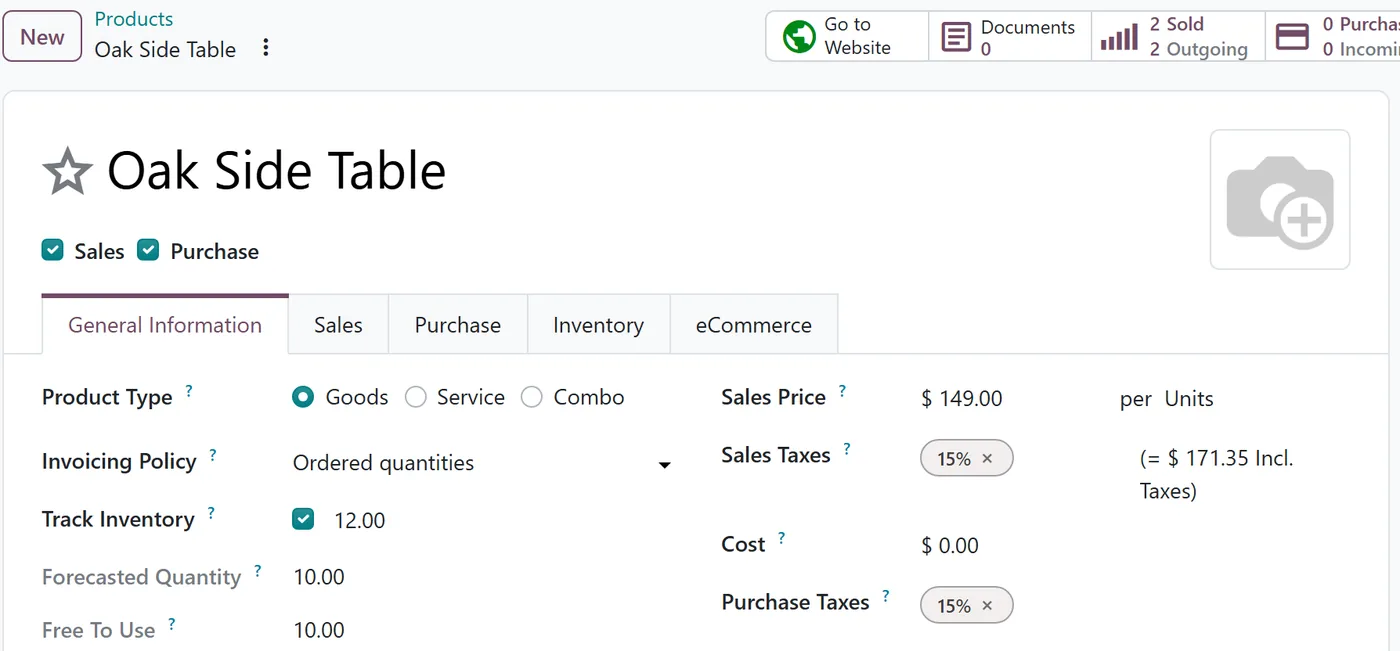
Below it you get two read-only figures:
- Forecasted Quantity: on hand, plus what is on confirmed purchases not yet billed, minus what is on confirmed sales not yet invoiced.
- Free To Use: on hand minus what is already promised on confirmed sales.
For a product with variants, the quantity is set per variant.
How does the quantity change without deliveries or receipts?
There are no delivery orders or receipts in this mode, so invoices and bills do the moving:
| Event | Effect on quantity on hand |
|---|---|
| Confirm a sales order | None yet. The quantity shows as outgoing and Free To Use drops |
| Post the customer invoice | On hand goes down by the invoiced quantity |
| Confirm a purchase order | None yet. The quantity shows as incoming |
| Post the vendor bill | On hand goes up by the billed quantity |
| Post a credit note, or reset or cancel a posted invoice | The earlier movement is reversed |
Here is the same product after the invoice for 2 units was posted: on hand is now 10 and nothing is outgoing.
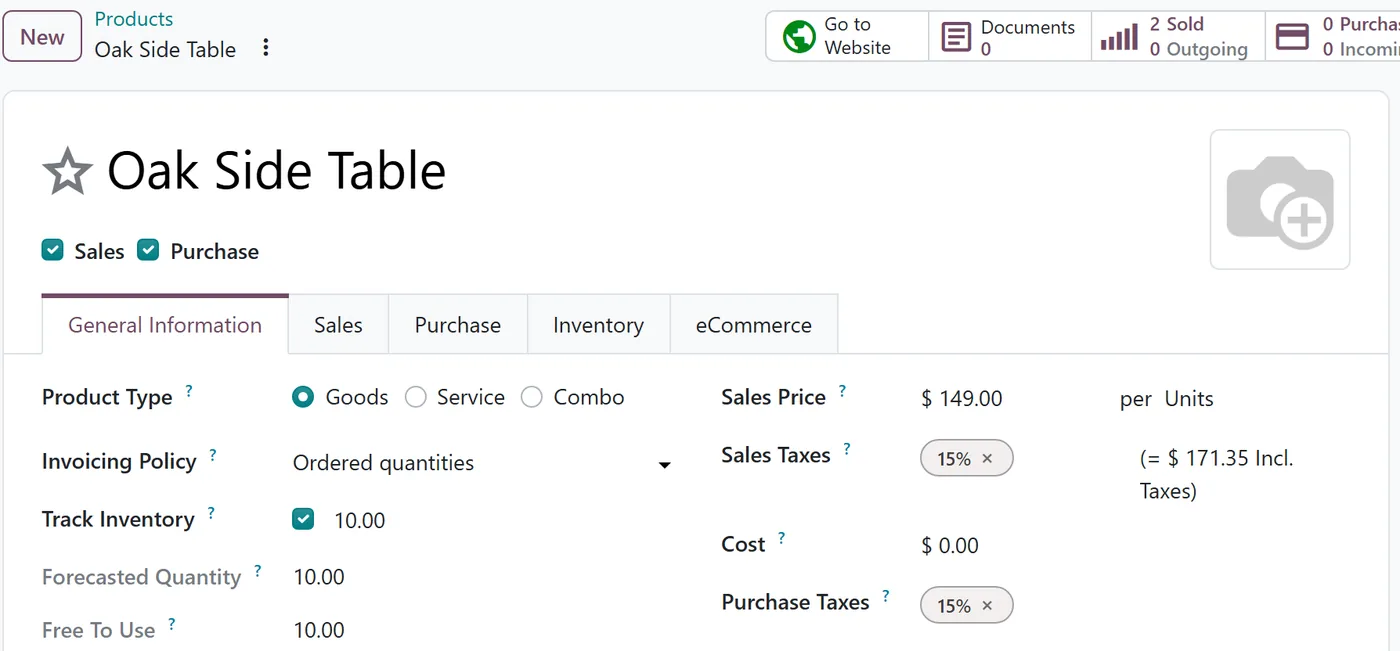
This fits shops where invoicing and shipping happen together. If you often ship weeks before invoicing, or invoice before stock arrives, the numbers will lag reality, and the full Inventory app is the better fit.
What can the shop do with this quantity?
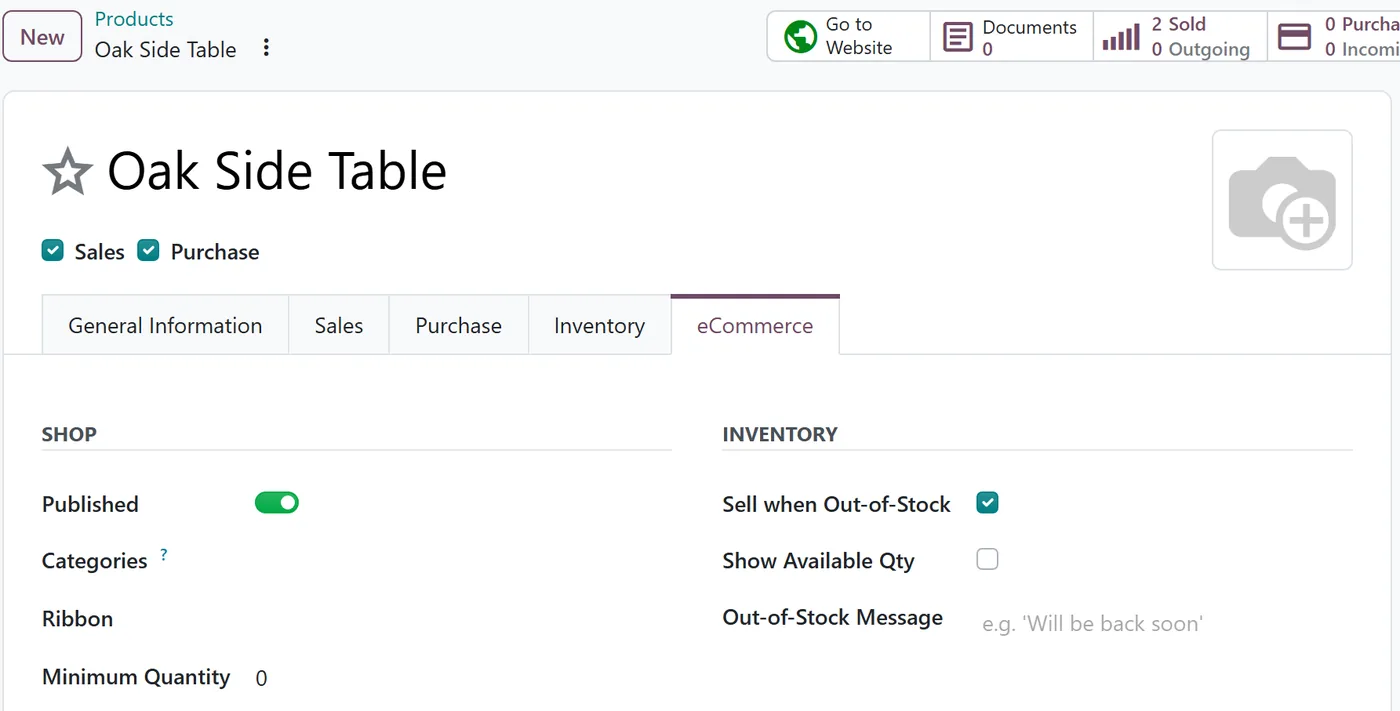
On each product's eCommerce tab you control how the shop reacts:
- Sell when Out-of-Stock: leave it ticked to keep taking orders at zero, untick it to block the Add to Cart button.
- Show Available Qty: show the remaining quantity, below a threshold you choose.
- Out-of-Stock Message: a short line such as "Back in two weeks".
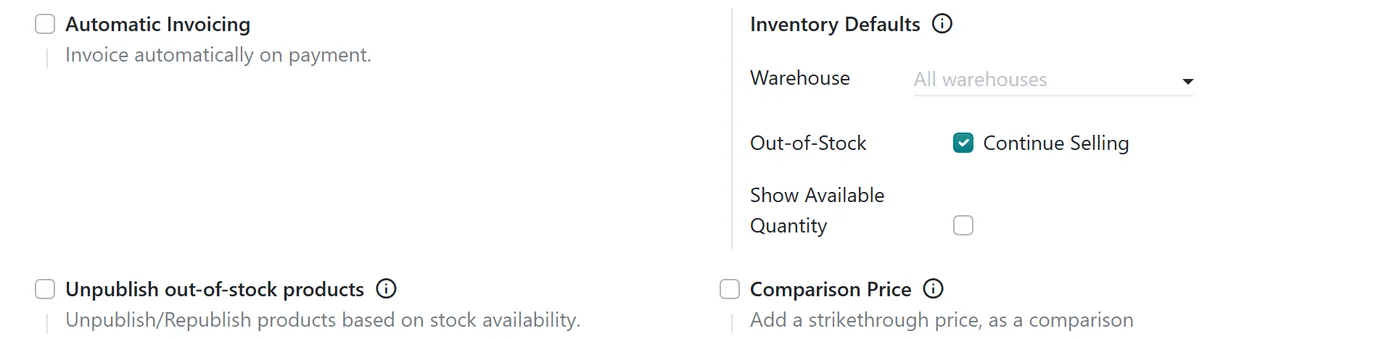
The defaults for new products live in Website > Configuration > Settings, where you will also find Unpublish out-of-stock products ("Unpublish/Republish products based on stock availability").
How does automatic unpublishing behave?
With Unpublish out-of-stock products switched on, Odoo takes a product off the shop when every variant has nothing free to use, and puts it back when stock returns. It only does this for products that track inventory and do not allow selling when out of stock.
Two details matter in practice without the Inventory app:
- The check runs when the quantity on hand changes. Updating the quantity, posting a customer invoice or posting a vendor bill all trigger it. Confirming a sales order reduces Free To Use but does not, by itself, take the product offline. The product disappears when the invoice is posted or the quantity is updated.
- It also republishes. If you unpublished a product by hand while it still had stock, the next change to its quantity can put it back on the shop. Products you want hidden for other reasons (a discontinued range, a product under review) should be archived or excluded from the rule by allowing out-of-stock orders, rather than just unpublished.
When to install Inventory instead
This light mode is deliberately simple. Move to the Inventory app when you need any of these:
- More than one warehouse or stock location.
- Delivery orders, picking and packing, or carrier integration.
- Lots, serial numbers or expiry dates.
- Stock valuation in the accounts.
Once Inventory is installed, it takes over: invoices and bills no longer move quantities, and deliveries and receipts do. Our Odoo Inventory guide covers that side.
FAQ
Is this available in Community?
Yes. Track Inventory, the quantity on hand and the shop options come with the standard Sales, Purchase, Invoicing and eCommerce apps.
Why did a product stay online after its last unit sold?
Without the Inventory app, the unpublish check runs when the quantity on hand changes. Until the invoice is posted, the sold unit shows as outgoing but on hand has not moved. Untick Sell when Out-of-Stock if you need the shop to stop taking orders as soon as Free To Use reaches zero.
Can I start light and add Inventory later?
Yes, and it is a common path. Plan the switch like a small migration: count your stock, install Inventory, and set the opening quantities there on a chosen date.
Next step
If you are choosing between light stock tracking and the full Inventory app for your shop, our implementation team can walk through your order flow and recommend the simpler option that still holds up. For the shop itself, see our Odoo eCommerce guide.